In modern society, stableNetwork connectionsIt has become an indispensable part of our lives. We rely on networks for activities, whether in work, learning or entertainment. When we go out, we may face a dilemma without wi-fi. At this point, creating hot spots through computers is an important solution. This paper will describe in detail how differentOperating systemsThe computer opens the hotspot to help you keep the network connected at critical times。
Basic concept of hot spots
Hotspots (hotspots) are the means by which their network connections are shared with other equipment through one device (e. G. A computer or mobile phone). Typically, computers connect to the internet via a cable network and then share this connection with other devices, such as mobile phones, tablets, etc. This function is particularly important during travel, meetings, learning, etc。
Windows systems turn on hot spots

For users using windows, the process of opening hot spots is relatively simple. First, make sure your computer has a wire network adapter. You can click on " this computer " , choose " management " , and then check in the " device manager " to see if there is a wireless adapter under " network adapter " 。
Next, in windows 10 and above, you just click the " start " menu to choose " settings " and enter the " network and internet " settings. Select " mobile hotspots " in the left-hand menu to open " share my internet connection with other devices " . Select the network connection (e. G. Ethernet or wi-fi) that you want to share, and set the network name and password and click save. Once enabled, the other devices can find the hotspot name you set by searching for wi-fi。
Macos system opens hot spots
For macos users, steps to open hot spots are equally simple. Click on the apple icon at the top left corner of the screen to select the system preferences and then enter the sharing option. In the shared window, the internet sharing option is found. Select your current network connection (e. G. Ethernet) from the shared your connection from drop-down menu, and choose " wi-fi " from " to computer use " . Check the box before internet sharing and confirm the opening。
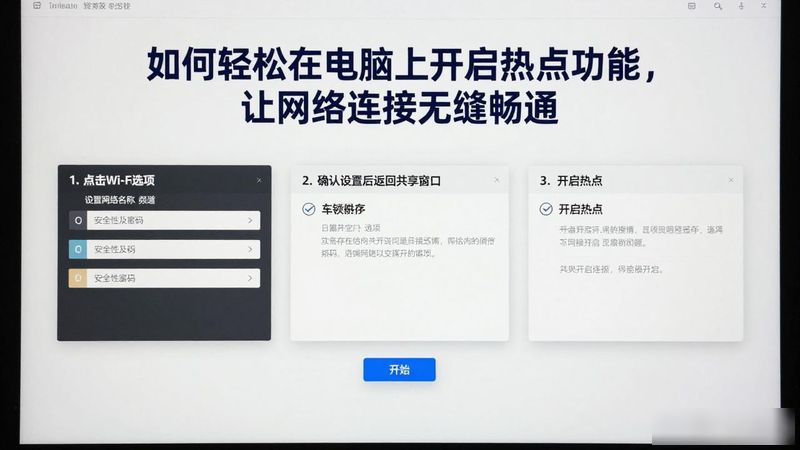
Then click " wi-fi options " to set the network name, channel, security and password, confirm the settings, return the shared window and tick the " internet sharing " option. The system will prompt you to confirm that you can open the hotspot by clicking " start " 。
Linux systems turn on hot spots
The manner in which hot spots are opened in linux may vary from issue to issue, but the basic steps are similar. First, check the network manager to ensure that the system is equipped with a network manager. Select settings or network settings by clicking on the top-right network icon, find the " wi-fi " option, click " use as hotspots " or " create hotspots " . Configure the network name and password to start the hotspot。
If you prefer to use a command line, you can use a command similar to:

I don't know what you're talking about
Of these, wlan0 is the name of a wireless card, which you can modify the name and password of the hotspot if you want。
Security of hot spots
When setting hot spots, it is essential to ensure network security. First, it is important to set strong passwords to avoid arbitrary connections. A strong password should contain letters, numbers and special characters and be at least eight bits long. Second, it is recommended that passwords be periodically changed to prevent unauthorized access. At the same time, connections are regularly monitored to ensure that no unknown equipment is accessible. If suspicious equipment is found, the connection should be disconnected and the password changed in a timely manner。
Applications for hot spots

The applications of hot spots are very extensive. While travelling outside, equipment may face a situation without wi-fiComputer hotspotNetwork support for other devices can be provided through mobile data. In meetings or workplaces, where there is no stable network connection, network support can be provided to colleagues or clients through computer hot spots. For users who are learning online, a computer hotspot ensures that the learning process is free of network interference and provides stable connectivity。
Common problems and solutions
Users may encounter some common problems in the use of hot spots. For example, if the connection is found to be unstable, you can try to restart the computer or reset the hot spots and ensure that there are no jamming devices around. If other devices cannot be connected, check that the hotspot is on and the password is entered correctly。

In the case of slow network speed, which may be influenced by factors such as the intensity of the signal, the number of equipment and the bandwidth of the network, it is recommended to minimize the number of connecting devices in order to increase the speed of the network。
Concluding remarks
Through the above steps, users of different systems can easily turn on computer hotspots to provide easy network connectivity for life and work. Sets a strong password and regularly monitors connections to ensure thatCybersecurityImportant measures. It is hoped that this article will help you make better use of your computer hotspots and enjoy a seamless web experience. In today's rapidly developing science and technology, with intelligent tools such as simple ai, we can also manage and optimize our network connectivity more effectively. Maintaining a good web environment, whether for work, learning or recreation, is essential, and let us move together towards a faster digital life。