The biggest difference between laptops and desktops is that they are built-in batteries that can be used independently without external power supply. So, more power options are integrated in the windows 10 system pre-packaged in the notebook, and if you want to make the notebook more robust or continue for longer, you might want to start with that。
Power plan status classification
The latest version of windows 10, in addition to clicking on the battery icon at the lower right corner of the taskbar, allows the notebook to adjust between the maximum continuation and optimal performance by dragging the progress bar, and then enters the setup system power and sleep, then clicks on the other power settings on the right side of the interface to set up a more advanced power state。
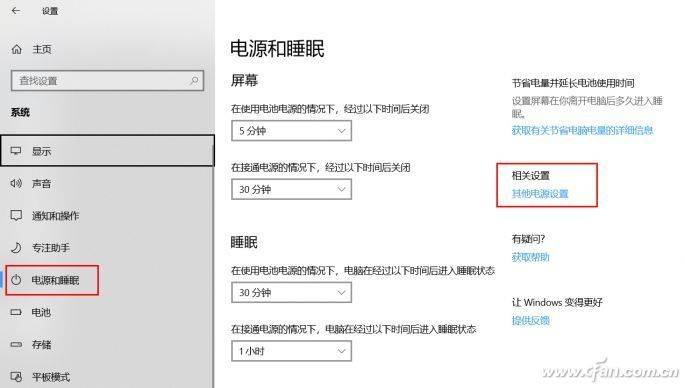
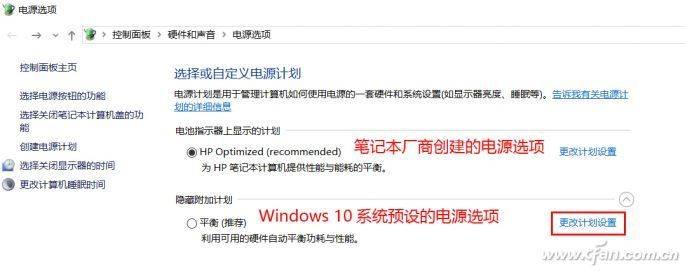
Here, we usually see two types of power supply schemes. The first is the power option provided by the laptop manufacturer, compared to the “hp optimized”; the second is the power option pre-set by windows 10, with the early version of the system containing high performance, equilibrium and energy-saving models, and only one “balanced mode” left of our newly purchased notebook (or after updating the system)。
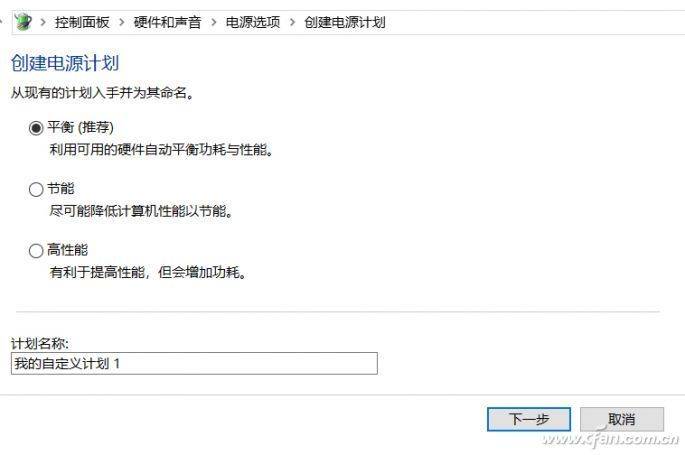
Of course, we can also modify and rename the existing equilibrium model or the system's hidden high-performance and energy-saving model by clicking on the left option of "creating a power program."。
In general, it is sufficient to set the notebook in a “balanced” mode, the logic of which is that when the laptop is powered by a battery, the system will go into a “energy-saving” mode; when external power is used, it will automatically switch to a “high performance” mode without any manual intervention. If you're going to play a game, and you want the notebook to release 100% of the performance power, you can then go to set game game mode and open the switch in front of the game mode。
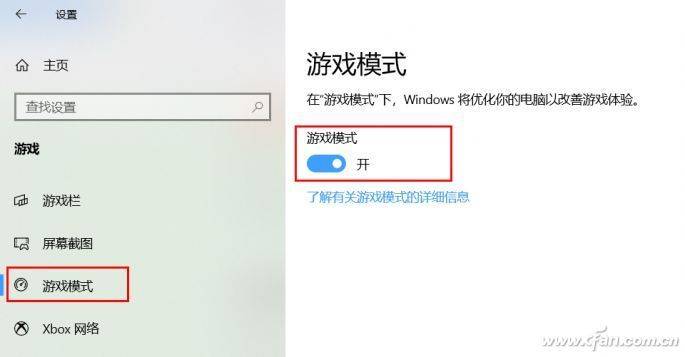
In game mode, the system will prevent windows from updating tasks that consume system resources, such as implementing driver installation and sending restart notifications, while helping the game achieve a more stable frame rate。
Modified power supply on demand
Click on the change power plan option on the right of the second chart, so we can access the detailed settings interface of the current power plan。
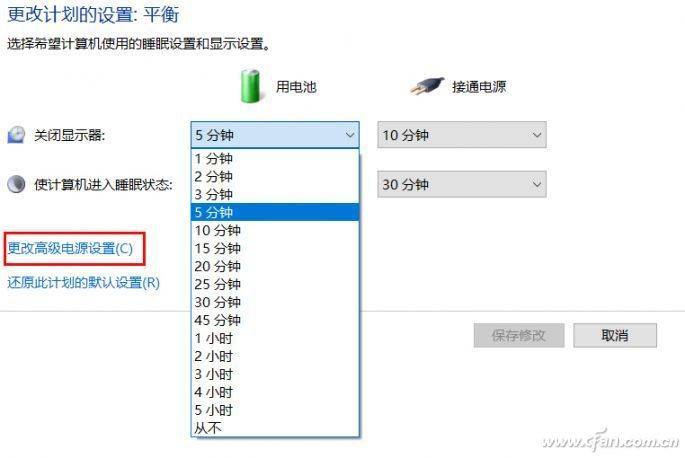
Here, we can modify the time when batteries or power connections are used, when the notebook shuts off monitors and waits for sleep without any operation。
When batteries are used, it is possible to shut off the laptop as soon as possible or to sleep as quickly as it is not operational, but the disadvantage is that you need to reawaken the system before you need to use the notebook and wait 5 to 10 seconds。
When we connect the power, we do not need to think about renewal, and the meaning of these settings becomes energy-efficient and environmentally sound, while the opening of sleep to awakening requires re-entry of the password (setting the account log-in option) to maximize privacy security and prevent us from leaving the laptop for long periods of time when someone is looking at the data in the system。
Click " change advanced power settings " in the previous chart to provide in-depth adjustments to hardware and functions that affect performance and power consumption. In the case of “processor power” it is possible to set the “minimum processor status” (minimum primary frequency under low load, 5%), “systemic heat dispersion” (the fan operating mode, passive mode will close the fan or lower the rate of turn-off, but the processor will also be unable to operate at high frequency due to heat dissipation) and “maximum processor status” (the automatic overfrequency function set to 99% processor will fail and the maximum main frequency default can be limited by percentage)。
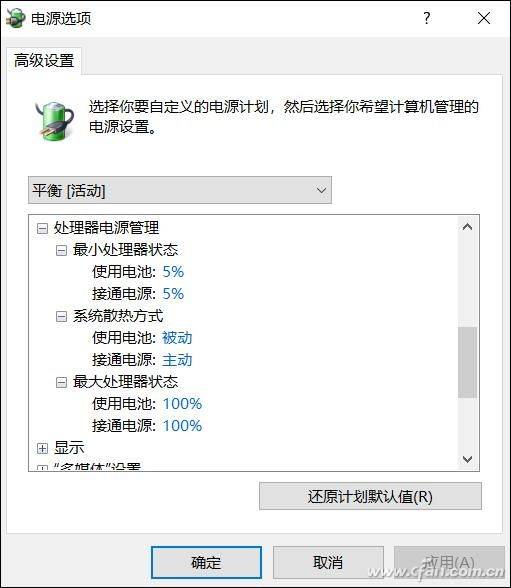
In addition, we are able to perform battery and electrical operation of hardware such as usb interfaces, wireless network cards, pcie equipment and graphic cards. The high-performance, equilibrium and energy-saving models mentioned above are in fact the result of the different configurations of these options。
In the power option, we can also customise the functions of the system when pressing the power button, when pressing the sleep button and when turning off the lid, including not taking any operation, sleep, hibernation and shutdown. The self-definition of notebooks based on their type of hard drive and their own habits can greatly enhance the operational experience。
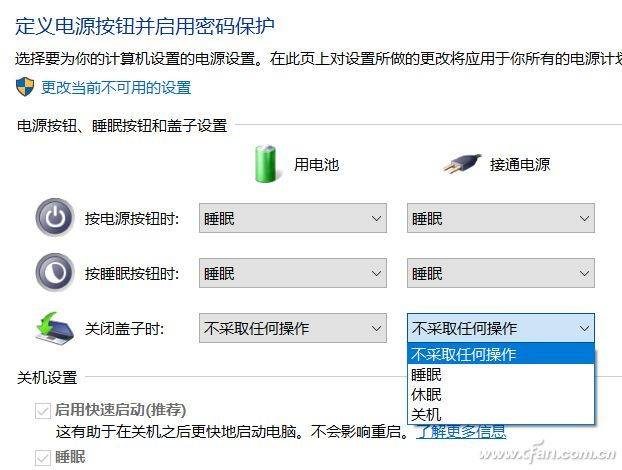
Until then, we need to understand the difference between sleep and hibernation。
The cpu is in low energy consumption while the system sleeps while cutting off the power supply from equipment such as hard drives, graphic cards, mesh cards, etc., and preserving the current operating programs and data of the system only by retaining memory. All unsaved data will be lost if power is cut during sleep (cell failure). If you want to wake up from sleep, you just press any button or move the mouse on the keyboard for a short time (within 5 seconds)。
Before the system is dormant, all memory data are written into the hard drive and the power supply of all equipment in the host is shut down, at which point even the power cuts will have no impact on unsaved data. To awaken the dormant notebook, you need to re-activate the computer by pressing the power button, and the system automatically re-inscribes the state data recorded in the hard drive into memory, so that you can restore the original working state. The waiting time from hibernation to awakening depends on the type of hard drive, which may take more than 30 seconds if it is a mechanical hard drive, and can be reduced to 5 to 10 seconds if it is a solid ssd hard drive。
According to the author's own usage habits, if ssd is embedded in the notebook, i will press the power button, the sleep button and the closed top to "sleep" to ensure that the notebook remains on standby。
Of course, you need to “mix it” according to your own circumstances, for example, to shut it down in order to prevent error in the power button, to press the power to “do no operation”, and to click on the system taskbar shut-off icon if you want to turn it off。