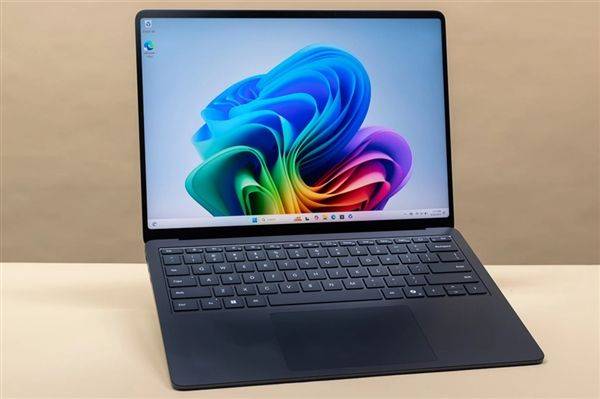


The laptop, which is an indispensable “productivity tool” in our daily work and learning, suffers daily from fingerprints, dust and food shreds. These stains not only affect beauty, reduce use experience, but also make it more likely that heat channels will be blocked, leading to overheating, reduced performance and even reduced useful life of computers。
It's time for a complete clean-up for this “faithful partner”. The plan teaches you how to take a safe and effective “bath bath” for the notebook so that it can be fresh and return to its peak。
Preparatory work: if you want to do good, you have to do it first
Before we start, please turn off all the external power and equipment. Then the following cleaning tools are ready:
Super fine fibre cloths (2 pieces): nice and soft, not hairy, without scratching the screen. One for cleaning, one for drying。
Screen cleaning spray: please select a special cleaning agent that does not contain corrosive ingredients such as alcohol, ammonia, etc. To avoid damage to screen coatings。
Flour brushes: dust to clean keyboard cracks and interfaces, clean makeup brushes or camera brushes are excellent options。
Blow balloons or compressed air tanks: powerful air currents can blow out the stubborn dust hidden deep in the cracks。
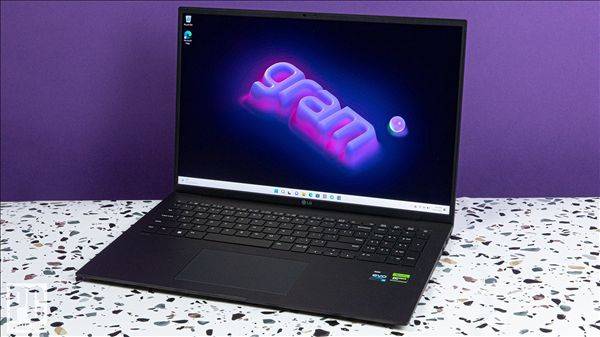
Step-by-step teaching: three steps done, one new one
Step 1: screen cleaning - farewell fingerprints and stains
The screen is our visual window, and keeping it clean is essential。
Spray cleaning agent: remember, spray a proper amount of clean spray on a super fine fibre sheet so that it is in a micro-wet state, and it must not be sprayed directly on the screen in order to prevent the fluid from entering the frame of the screen and causing damage。
Soft wipe: use a wet cloth to gently wipe the entire screen in a single direction (e. G. From top to bottom or from left to right). Avoid looping, which can effectively prevent water marks。
Dry polishing: switching to another dry, clean, super-breeding fibre cloth, also gently rubbing the remaining vapours in a single direction, so that the screen can be restored to light。
Step 2: keyboard cleaning - cleaning of snacks and dust
Keyboard cracks are the worst-hit area of dirt。
Initial clean-up: reverse or tilt the notebook 45-75 degrees, gently slap the back and leave large pieces of debris and dust naturally。
Blow out the dust: use a balloon or condensed air tank, close the gap in the keyboard and blow the dust out of the deep. When using a compressed air tank, keep the tank straight and at a distance from the keyboard。
Fine cleaning: scrubbing the gap between and on the side of the cap with soft hair, cleaning out the adhesive dust and hair。
Surface defouling: for oil stains on the headcap surface, a small amount of water or 70 per cent of the isopropanol (not to mention wipe caps, non-screens) can be extracted from superfluent fibre sheeting, wrinkled to a water-free state, and then gently wipe the headcap surface。
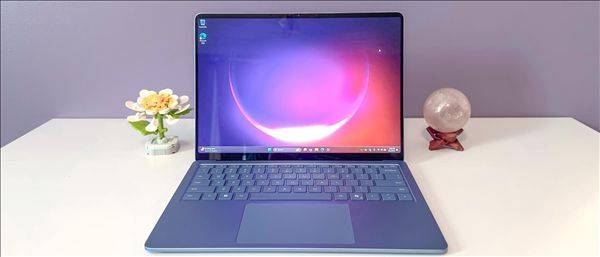
Step 3: cleaning the vents -- cooling for performance
This is the most critical and easily neglected step. The accumulation of dust in the vent is the main cause of computer overheating, fan swings and reduced performance。
Positioning windways: find the entry vent and the vent fence on the side, back or bottom of the notebook。
(b) use balloons or compressed air tanks, which are aimed at dispersing thermal vent fences, blowing out of the external towards the interior (for vents) or parallel to the grids (for vents), and spreading the clogged dust with short, strong currents。
Regular maintenance: this step is recommended every 3-6 months. If the problem of overheating is found to be serious, it may be necessary to seek professional services to clear down the depth of the machine。
Important taboos: do not step on these mined areas
It is forbidden to spray any liquid directly to any part of the notebook。
It is prohibited to use powerful, corrosive chemical cleaning screens such as alcohol, ammonia, window cleaning agents。
It is prohibited to use plain paper towels, wet towels or rough fabrics to wipe screens, which leave scratches and cotton。
It is prohibited to use vacuum cleaners to clean up the interior, and strong suction can cause static power and damage to precision electronic components。
Summary
A comprehensive cleanup of your laptop is carried out on a regular basis, not only for the equipment itself, but also for the efficient work experience. Try and enjoy the refreshment and fluidity that a new productivity tool brings you。