


Wireless net cardAs an important equipment for modern computers to connect to wireless networks, their proper set-up is essential for achieving wireless access. The following are detailed steps and attentions on wireless card settings to help users easily complete their configuration。
I. Hardware installation
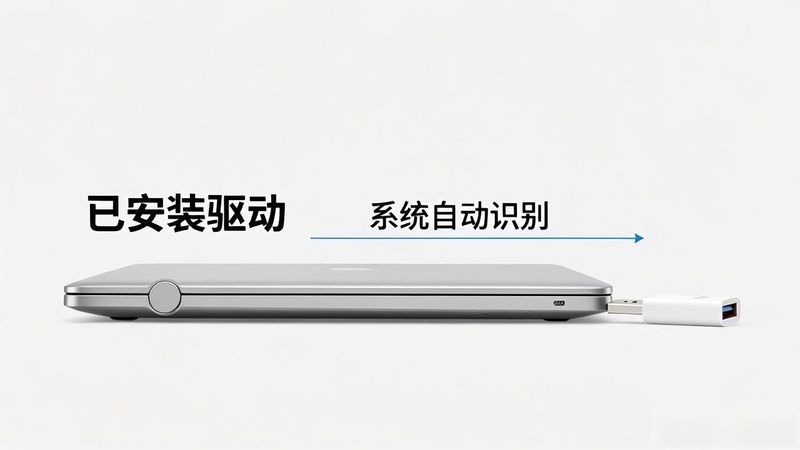
First, ensure that the wireless card is properly installed on the computer. For built-in wi-fi cards, there is usually no additional operation, just confirmationDriverInstalled. For the external usb wireless card, insert it into the computer's usb interface, the system automatically recognizes and attempts to install the driver。
Driver installation
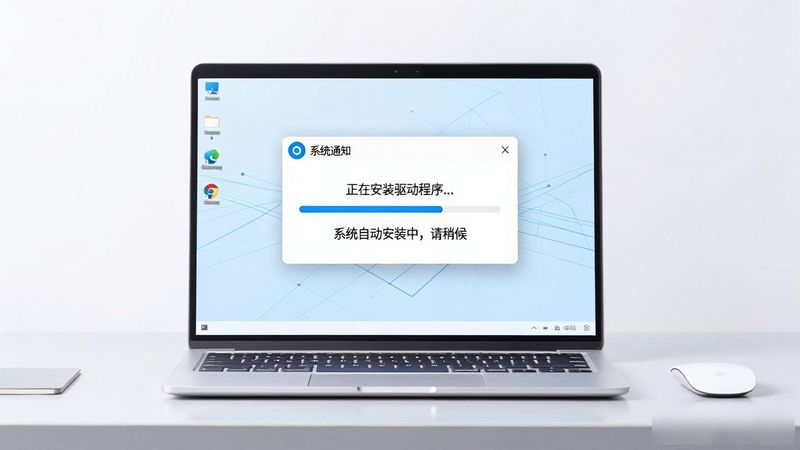
1. ** auto-installation**: most operating systems are automatically able to identify and install wireless card drivers. Just wait a moment and the system will automatically complete the installation。
2. ** manual installation**: in the event of a failure of automatic installation of the system, the user will have to download the corresponding driver from the official website of the wireless card manufacturer and proceed with installation as advised。
Iii. WirelessNetwork connections
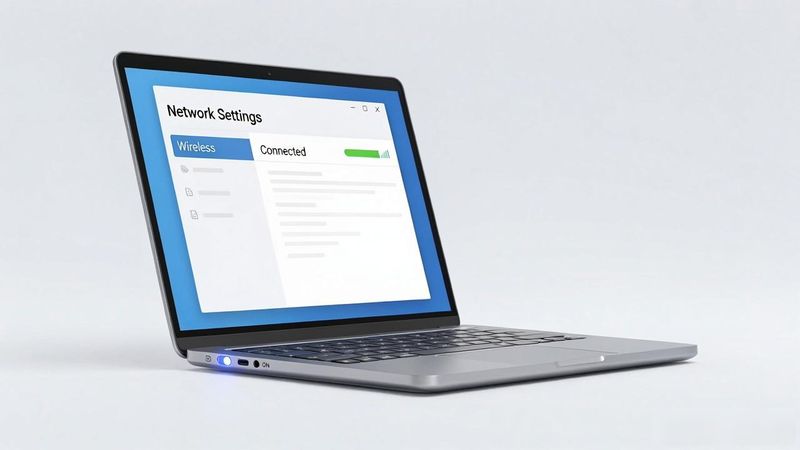
1. **opening of wireless network switches**: some laptop computers have wireless network switches that need to be ensured that they have been opened。
2. ** search for wireless networks**: click on a wireless network icon in the taskbar, and the system will list available wireless networks. Select the wireless network you want to connect to and click connect。
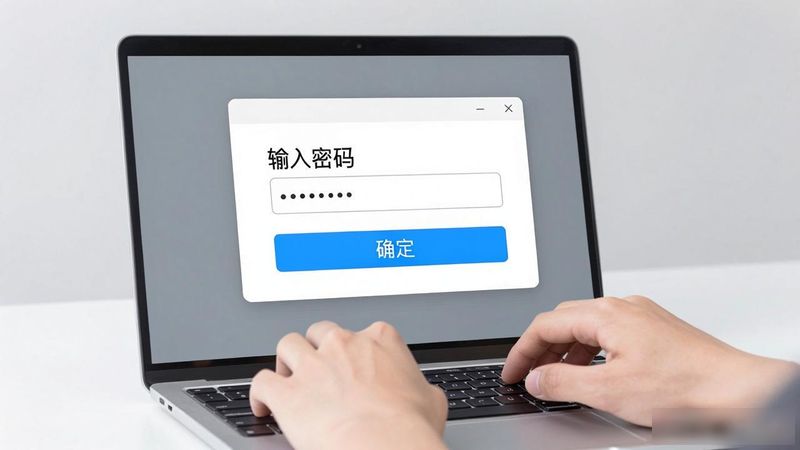
** enter password**: if the wireless network is password-protected, enter the correct password in the popup dialogue box and click " ok" to connect。
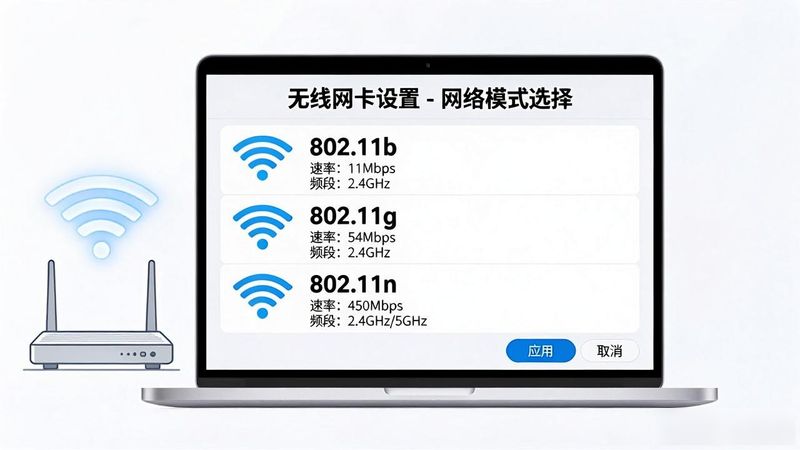
1. **network model selection**: selection of appropriate wireless network models based on demand, e. G. 802. 11b/g/n。


![新闻资讯APP排行,手机新闻APP排行榜前十名,手机看新闻哪个软件好[2026]](https://www.3z0.cn/file/upload/202608/26/1787681122214_lit.jpg)