Are there any brothers like me who suddenly fall off the frame when they play games? I've been looking for a computer with an edge browser

A few days ago, a copy of the hepatic net was set at 120, and suddenly fell below 60, and the skills were put in carden, and i wanted to break the keyboard. Half a day of cards, backstage programs were checked and it became clear that the edge browser ate the memory in the backstage, even if it opened a single tab page, took up nearly 1g memory and directly robbed the hardware resources of the game。
Seriously, microsoft just broke a good card. Edge itself is very useful, very fast and compatible, but the default settings are full of advertising, bullet windows and useless backstage programs, which not only bother people, but slow computers and influence game frames。
Today i'll give you a baby-sitter-level edge optimization course, which will be uncomplicated and can be followed by white. After the optimization, the edge memory occupancy was cut directly in half, the game frame went up 15-20 frames, and no more scolding was used to change the browser, nor to deliberately turn off the browser to play the game
Focus: brothers focus on steps 4 and 5, especially game players, step 4, which directly affects the frame of the game, and step 5, which avoids updating you
This is an optimised catalogue
1 disables the advertising of the glitch, and clears the viewing; 2 disables the undisturbed advertising window and cleans the web page; 3 changes the default download position so that the c drive is no longer used as a trash can; 4 closes backstage operation and redundant ram (core optimization, frame extraction, cut-off card frame); 5 disables automatic updating to avoid midway window frames。
One, turn off the ads and get edge back on the air
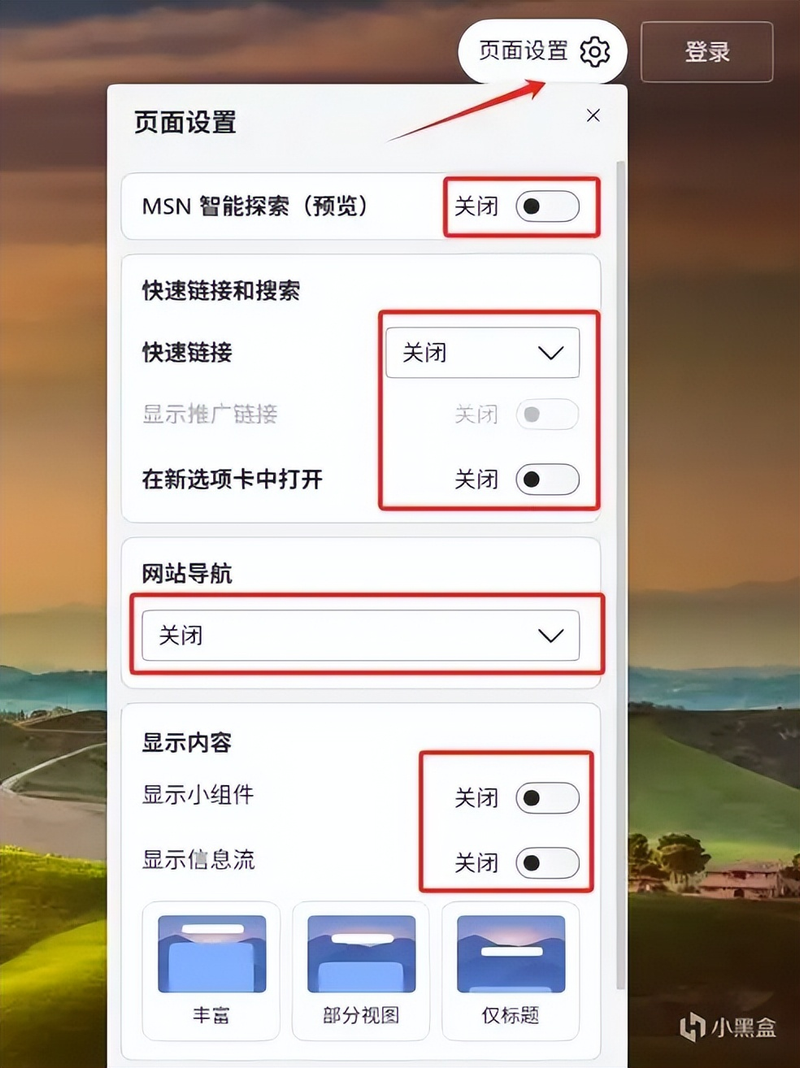
Opens the edge browser, finds small gears (sets icons) at the top right corner, clicks on the page setting, turns off all the additional ads and news on the page, and keeps only the core search box。
Don't think that this step is irrelevant, and the actual use of it shows that the default advertisement offers not only memory, but also half-day loads when opening new tabs, and a mess of vision。
When you close the new tab, the world is clear, there is no disordered advertising screen, and the speed of loading is much faster, even if the backstage of the game is hanging, it doesn't slow down, and the game is smooth。
Ii. Ban on advertising and viewing interference
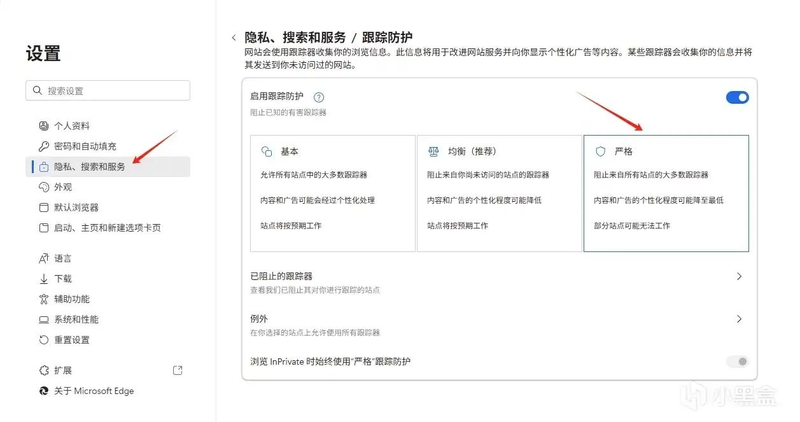
A lot of brothers spit on, and when they use edge to play the game and download the patches, they always pop out various advertising windows, sometimes playing the game to cut out and see the strategy, and then they get stuck once the window comes out, which particularly affects the hand。
The operation is simple: click on three points (more options) at the top right corner of edge, find settings, find privacy, search and services in the left menu bar, and then find the "trace protection" option, and bring the level of protection directly to "standard."。
Let me tell you something here. Don't worry about the normal browsing. In practice, edge's strict protection has matured, and most of the network of game officials, and the scheming website, are regularly open and unloaded。
But those annoying window ads, malicious follow-up scripts can be stopped directly outside the door, and can no longer be broken by web pages, games, and games cut backstages。
Iii. Relocation of downloads to save the full c disk
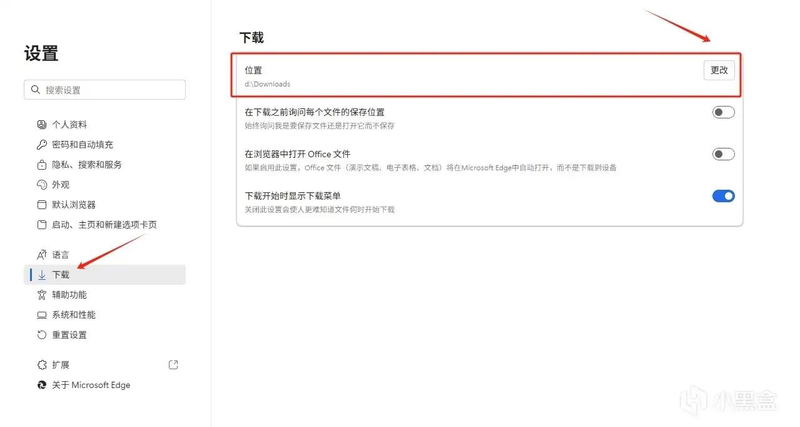
Many whites don't know that edge's default download location is c, while c is a system disk, which, once filled, not only slows the computer, but also affects the speed at which the game loads, and in serious cases, there are cartons and flashbacks。
Especially when we play games, we always download game patches, mods, packs, lots of gs, and the long-term c drive is full, and the more computers use the cards, the more hepatic copies, the half-day time they wait。
Optimistic steps are simple: either the " download " option is found in the edge settings, click " change " , change the default download path to a d disk or other non-system disk, such as the creation of a " edge download " folder for downloads。
In this way, both the downloading of game patches, the installation of packages and other files will be stored on the d drive, the c drive will be left with system files, the computer will run smoother, the game will be loaded faster, and c-disposals will no longer be used to clean frequently。
Core optimization: closing backstage, reducing memory, increasing game frames
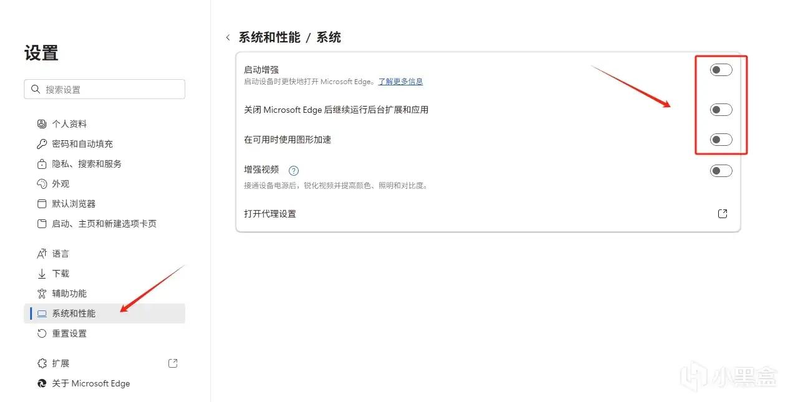
This step is the focus of the focus, and it is the most important one for the play brothers! Optimizing this step would allow the direct release of cpu, memory and graphic card resources, increase hardware quotas for games, stabilize frames, and no longer allow for the loss of nameless frames and cartons。
Edge's biggest player is the backstage sneaking up the memory, even if you shut down all the tabs, and it's still running backstage, quietly occupying the memory, especially when there are too many tabs, which can soar up to a few gs and take the resources directly from the game。
I've been out of these settings before, when the frames were too high and low, and sometimes the cards were clear enough, but carton was always there, and it took me a long time to figure out that it was edge who was doing it backstage, and after the optimization, the frames went back up and went off。
It's a two-step operation. It's easy to understand. Just do it
Step 1: open the edge settings, find the "systems and performance" options, turn off all three of the options, and leave none of them: 1 start enhancement; 2 continue backstage extensions and applications after microsoft edge is closed; 3 use graphic acceleration when available。
Turning these three options off would prevent edge from operating clandestinely in the backstage and would not take advantage of the excess memory and graphic card resources, even if the backstage were with edge, the memory occupancy would be contained within hundreds of trillions of gigabytes and would not rob the hardware quota for the game。
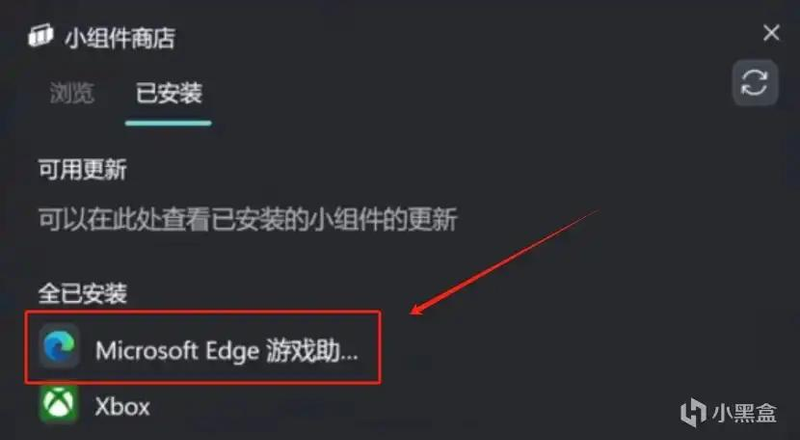
Step 2: unload edge game assistant. Many brothers did not know that there was an edge game assistant in the win10, win11 game board, who not only was useless, but also used memory to influence the game frame。
Method of operation: click on the win+g game bar, click on the top-right groupware store, then find the edge game assistant, click unloaded, unloaded without affecting the normal use of the game bar, and release a portion of the memory。
In order to optimize these two steps, the edge memory occupancy will be reduced directly by half, the game frame will rise by 15-20 frames, the previous frame of cartons will disappear completely, and edge will be on the backstage and will not affect frame stability。
V. Disable auto-update to avoid playing games with you
Edge's auto-update is a real player's nightmare! It is believed that many brothers have encountered it, play the game hard, and suddenly pop up edge's updates, which, even if you don't do anything new, will secretly download the update packages in the backstage, take over memory and the network, and lead to the cartons and the frame falling。
And what's more, sometimes it's forced to update, not only with a huge amount of hardware, but also with the possibility of browsing away and even affecting the game. I've been doing this before because of edge's sudden automatic update, and i'm just losing the frame and the lesson of blood
So this step has to be done, so it's completely off-limits edge to auto-update, avoid the middle of the game, in two steps, a little bit more complicated, but as long as the steps follow, white can do it:
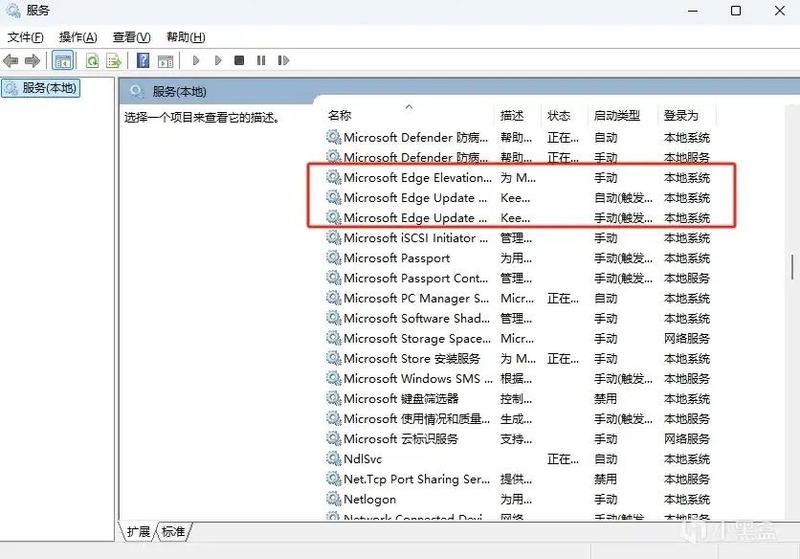
Step 1: move out of the running window by win+r, enter "services. Msc", click ok, enter the service management interface. In the list of services, the following three services were found, one of which was not missing: 1 microsoft edge update; 2 microsoft edge elevation service; 3 microsoft edge update service。
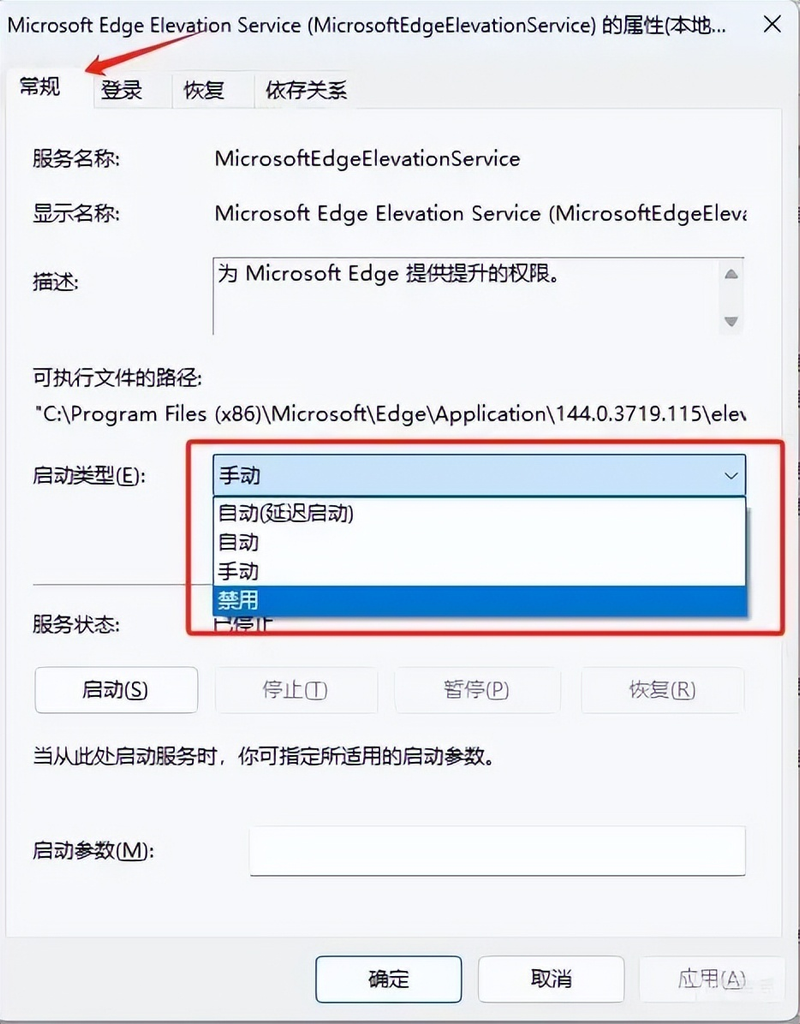
When these three services are found, the right-click, select properties, and in the popup window replace " start-up type " with " disable " , then click to make sure, so that edge can be prevented from automatically updating。
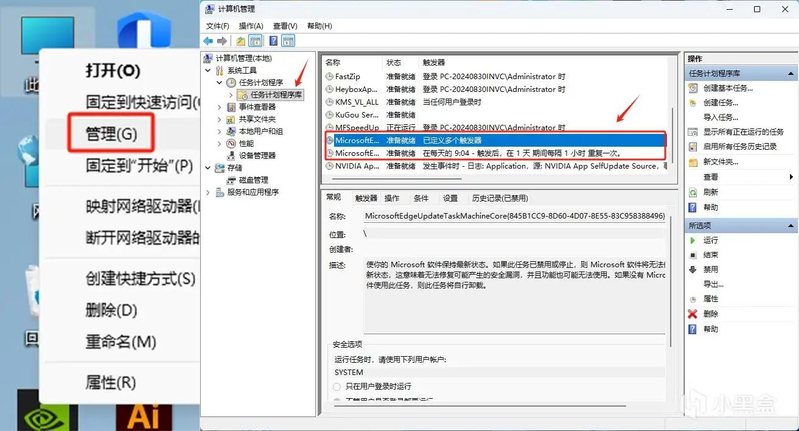
Step 2: complete closure of the automatic update trigger. Right click on " this computer " , find " management " , click into the computer management interface and then find " jobplan library " , in which you find two programs and " edge " to update, click on the right and choose " disable " , so that edge will be completely eliminated。
Here you are reminded that, once automatic updates are disabled, edge will not secretly update, nor will it pop up the updates, without prejudice to normal use, and that subsequent updates, if they are to be made manually in the settings, will not affect the game at all。
It's written at the end: after optimization, it really smells
Indeed, edge itself is a very good browser that loads faster, more compatible, better suited to the windows system than chrome, and less resource-efficient, but microsoft defaults on too many flowers, causing it to steal memory, play advertising, influence game frames, and bet on many players。
Once the steps above are optimized, these problems can be completely resolved. Optimized edge, clean-up without advertising, clean-up without rams, slow-down with computers, and stable frame numbers when playing games, even if the backstage is covered with a search plan, will not be better than chrome。
It took me a long time to optimise it, whether it's a web trip, a single game, or a daily browsing, and it's perfect for an optimised edge, with half of the memory and a smoother computer running, so you can't come back to me
Guys, try these perfect steps, and when you're done, you'll find that edge smells so good
Last wave of interaction: have you ever been poached by edge before? After optimization, how many game frames went up? Let's see who's the best