Did your edge browser use the extra cards? It's hard to drag the scroll? Don't worry, you might not have taught it。
Have you ever seen a scene in which an edge browser, full-screen news billows came up, a computer fan suddenly turned around and the browser occupied its memory directly above 1 gb? Every time you turn on the browser, it's like waiting for an old bull to pull

Many do not know that the edge browser actually hides many hidden settings, which require simple adjustments to transform from the memory assassins to the fluids. Today we'll share the microsoft employees' ultimate optimization guide
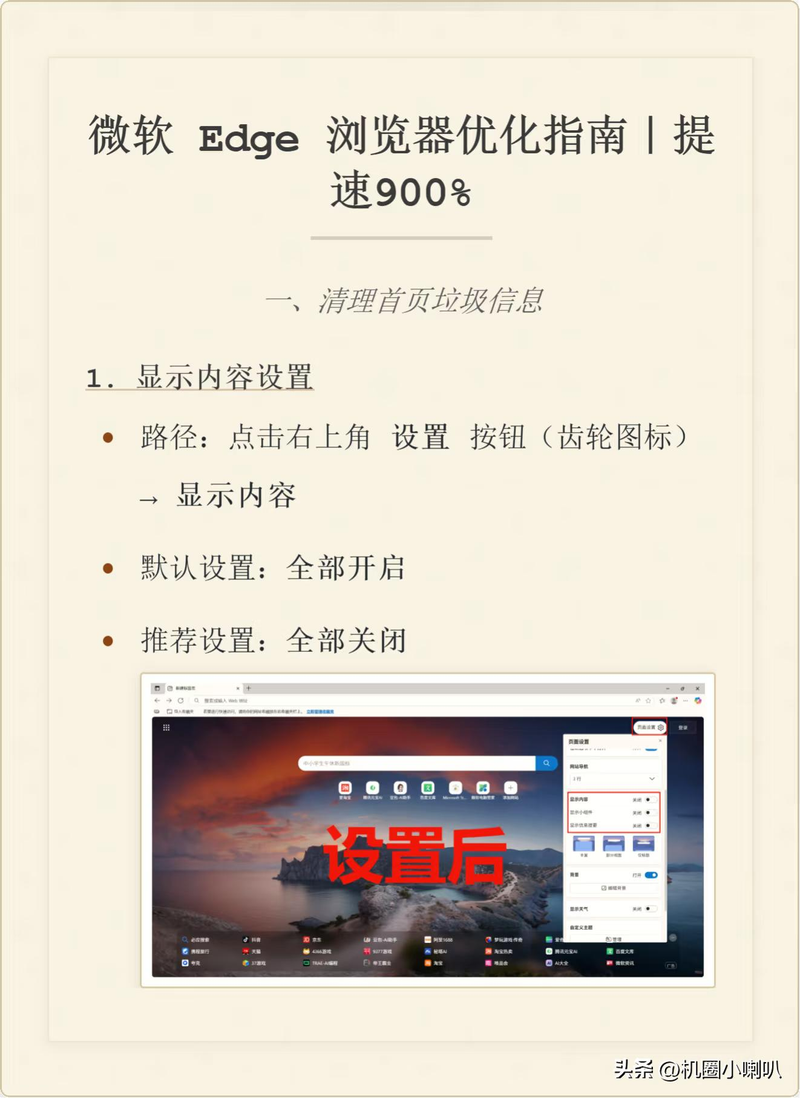
01 first page clean-up, leave it alone
The edge front page is full of news, weather and fast-linking, which not only slows loading, but also consumes significant system resources。
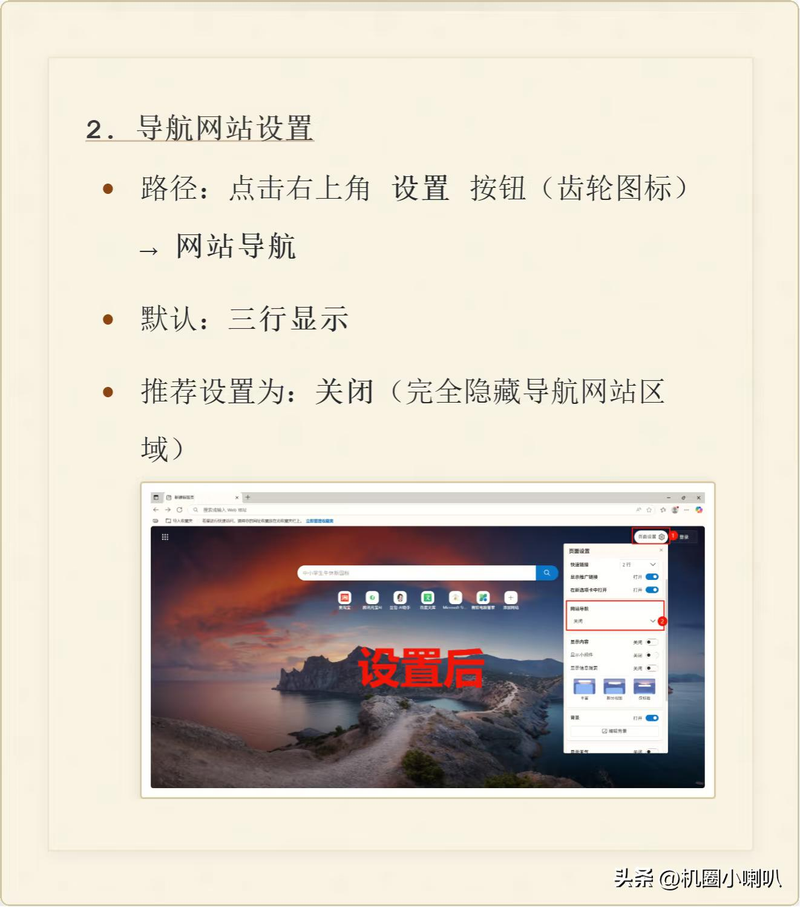
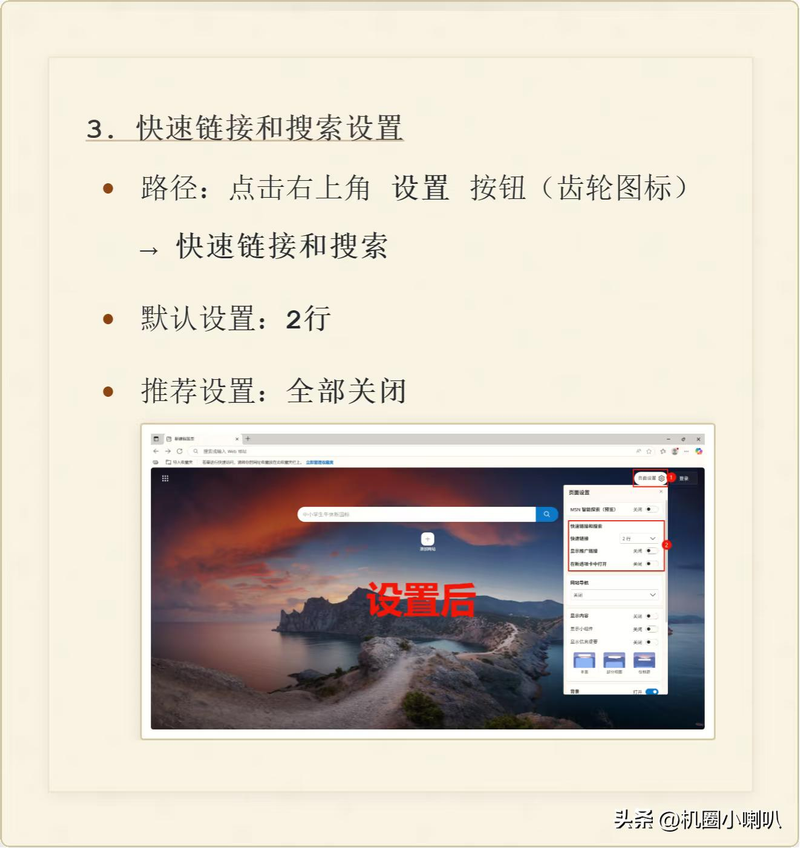
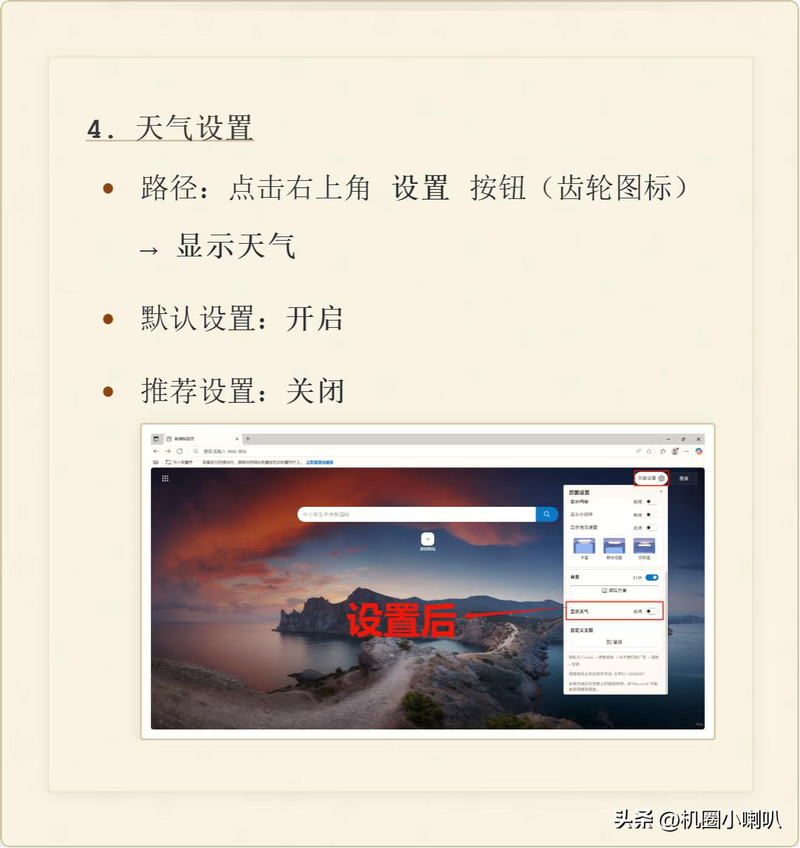
Optimizing the first step: click on the icon on the top right corner of the page to close all modules that are not required, including the six main elements of "quick link", "news delivery" and "weather component". When you close, your front page will become clear and simple, and load speed will be immediately visible。
02 search engine free switch
Edge defaults on bing's search, but you can switch it according to your preferences. Enter the "setting" `privacy, search and services' `address bar and search', where you change the search engine to your preferred option, such as google or others。
It is also proposed that the search engine used in the address bar be set to the address bar only so that there will be no interference between multiple search boxes。
03 sidebar and advertising cleanup
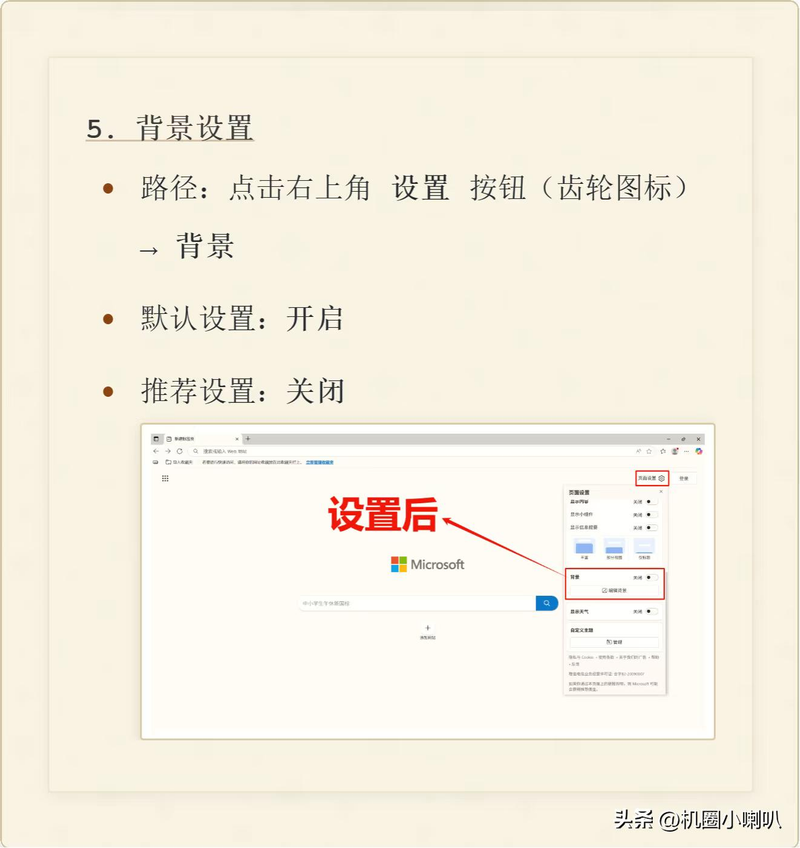
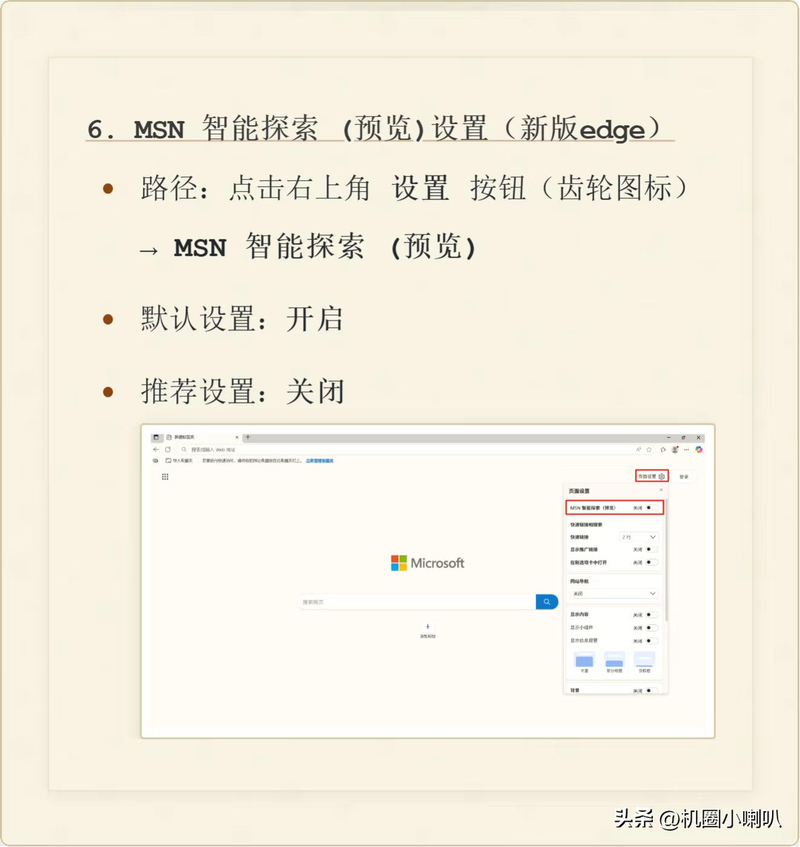
Edge's sidebars are copilot, tool set, etc., which, while useful, will continue to consume system resources. Finds the sidebar options in settings, and closes the functions of always show sidebars and allow borderbars to apply notices。
At the same time, the closure of the “personalized advertising” and “tracing protection” options in the “privileged, search-and-service” settings would not only increase speed but also enhance the protection of internet privacy。


04 extension management with 20 per cent reduction in memory occupancy
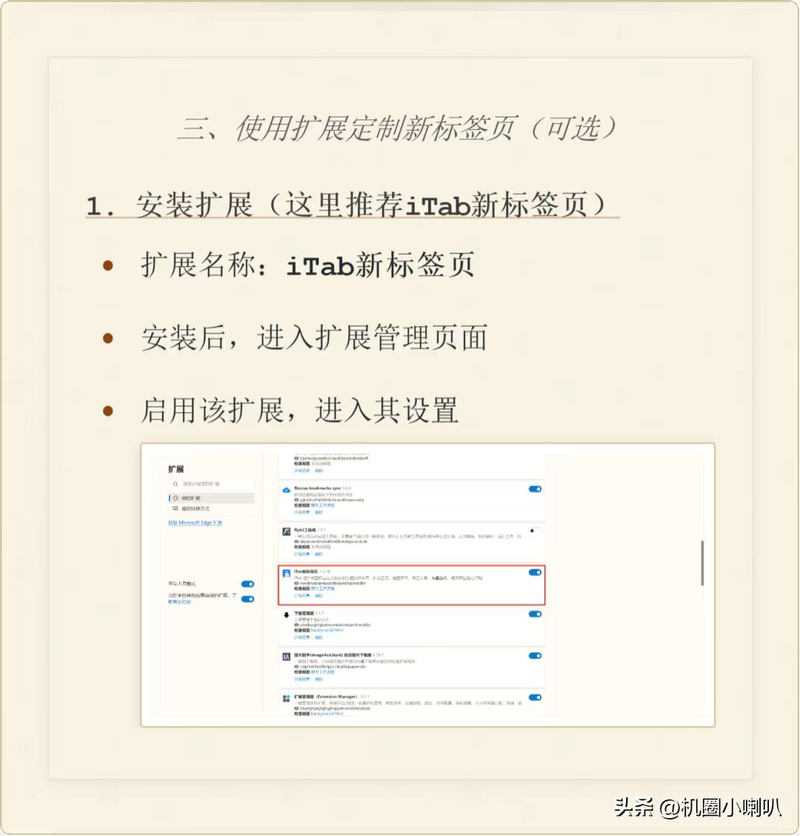
Extension plugins are one of the largest memory consumption killers. Enter edge://extensions/, enter the extension management page, disable or remove those extensions that are not commonly used or duplicate functions, especially advertising interceptors, download tools, etc。
Retain core extensions such as ublock origin (advertising interception), dark reader (night mode) and tampermonkey (script management). This operation allows for an immediate reduction of memory occupancy by more than 20 per cent。


05 performance optimization final settings
Enter "setting" to "systems and performance" to enable the following key functions:
For high-end device users, you can try to modify the flags experimental function: enter edge://flags/# in the address bar
Allowable-parallel-downloading, setting parallel downloading to enabled, enabling multi-wire download technology to increase download speed significantly。


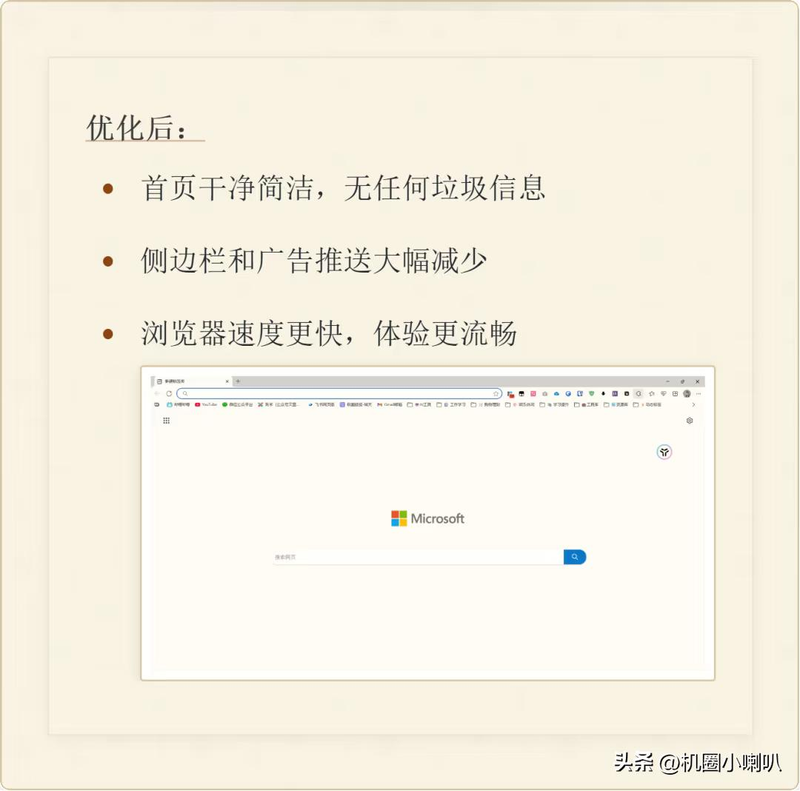
The results showed that, after the above optimization, the edge browser web page had been loaded at a speed higher than 300 per cent, that memory occupancy had been reduced by 50 per cent and that there had been no annoying advertising and news delivery。
Optimizing comparative data show that edge, which originally occupied the 1. 2-gb memory, is now only around 600mb; the browser is operating at a reduced rate from 4 seconds to less than 1 second。
Optimizing edge does not diminish its functionality, but makes it more efficient in your service. It's like packing up rooms, cleaning up unnecessary groceries, leaving room for what really matters。
It is recommended that critical data be backed up before optimization, although these settings do not affect your collection folders and passwords, but are available. Low-assembly computers are particularly effective
How much of your edge's memory? Try these ways and feel the speed of flying