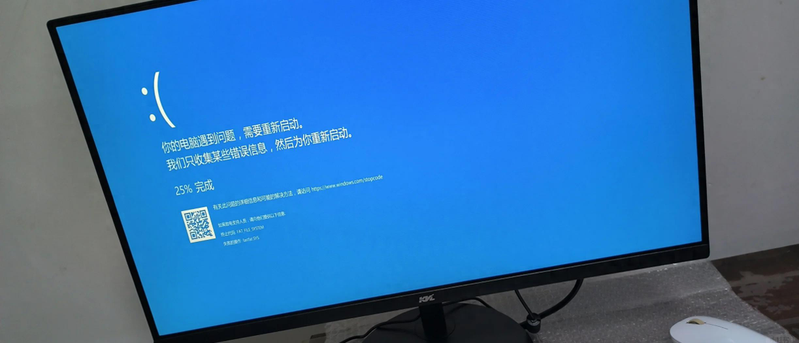
Are you worried that the new computer is flying fast, but after six months, it's like a tractor, it's going to turn around, but it's not working
Don't worry about the computer, and don't pay for the hardware upgrade
Many times the system slows because you're not perfect。
Today, we will share with you five completely free-of-charge, simple windows-based optimization devices. We will do this again, so that your computer will be “dismantling” and able to find a sense of fluidity when it comes to buying. It is recommended to collect it and then operate it in case of need。
Set one: a "deep brush" for c-disk cleanup
The c-roll is one of carden's killers. The system's own "disk clean-up" tool can safely remove waste。
Operational steps:
Open [this computer], right click [cd], select [ property]. Click [disk clean] and then click [cleanup system file]. Focus: “windows update cleaning”, “temporary documentation”, “trash”. They often occupy several gs or even dozens of gs. Click ok, one key clean。
Effect: the system works easier by immediately releasing large amounts of space for disk c. Set two: turn off the "straw leg" starter - optimize startup
Many of the software will “sneakly” set up the start-up and significantly slow down the start-up。
Operational steps:
Press ctrl + shift + esc to open [task manager]. Switch to the [starter] tab, you'll see all the starters. Right-click on non-usual, non-essential software (e. G. Some players, download tools, software assistants) and select [disable]。
Effect: next time you turn it on, you'll be surprised to notice that speed's fast! Set three: turn off the fancy "paint" feature -- adjust visual effects
Windows' animated effects are good, but they consume system resources. For old computers, they are the most cost-effective means of speeding。
Operational steps:
Right click [this computer], select [relations], and then click [advanced system settings]. Click on the performance area under the [advanced] tab. Select [adjusted to optimal performance] or manually remove some deceptive effects (e. G. Animation, shadows, transparency effects)。
Effects: operation fluidity increases visible to the naked eye, especially when windows are switched and dragged. Set 4. Optimize virtual memory for the system indicator 's clear path '
Virtual memory is an extension of physical memory and should be designed to effectively mitigate carton, which is caused by insufficient memory。
Operational steps (a little step, but simple to follow):
Ibid. Open [advanced system settings]. Click on virtual memory [change] in [advanced]-[specific]-[advanced]. Removes the " automanaging the page break file size of all drives " . Select the c-disk (or the disk in space), select the [size of system management], then click [set] and [set]. Effective after restarting the computer。
Effect: effective reduction of “false deaths” and the carton phenomenon of the system due to inadequate memory. Set five: let the system learn to "self-maintenance" - enable automatic maintenance
Windows has an automated maintenance function that allows you to automatically perform security scans, system updates, etc. While you are free。
Operational steps:
Enter and open the search box at windows. Click to expand the [maintenance] option to find [automaintenance]. Ensures that it is open and can set the time for automatic operation by clicking on [change maintenance settings] (recommended for non-computer use at night)。
Impact: pre-emptive, keeping the system in good condition and avoiding accumulation of problems。
The above five settings range from garbage removal to deeper optimization, layer progression. It'll take about 15 minutes to do it all, but the fluid experience that comes with it might make you feel like a new computer
In particular, if critical information is available before optimization, it is recommended that simple backup be provided and that the operation be safe but safe。
How long has your computer been there? Try it
You're welcome to leave a message in the comment area about your computer model and optimized effects, or to share your own exclusive quick moves. If you have any problems, you're welcome to ask questions。
♪ computer skills ♪