Printer-driven installation and configuration
Conicameda printer
Printer
Printers are frequently used in our daily lives, but they are more unfamiliar and complex to install. When printing, select the printer configuration to be more cloudy. For example: a4 single-sided printing, a4 double-sided printing, a3 single-sided printing, a3 double-sided printing, booklet printing, binding functions: single-sided binding, double-sided binding, double-edged left-hand binding, left-hand nailing, booklet binding, etc。
In the windows 10 (windows 7) environment, the installation of printer-driven installations and the usual configuration of printers, for example, were carried out using printers of conicameida type [accuriopress c4080]. And introductions to printer configurations, printer configuration export and printer configuration import。
Exporting printer configuration information to allow subsequent installation of printer drives on other computers without reconfiguring, simply importing printer configuration files, and automatically loading configuration information without reconfiguring printer configuration properties。
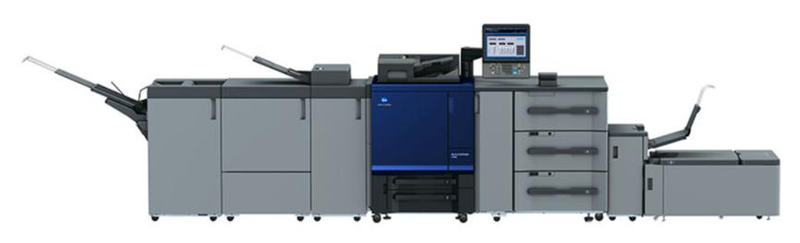
Conicamida printer
Let's start with the printer drive
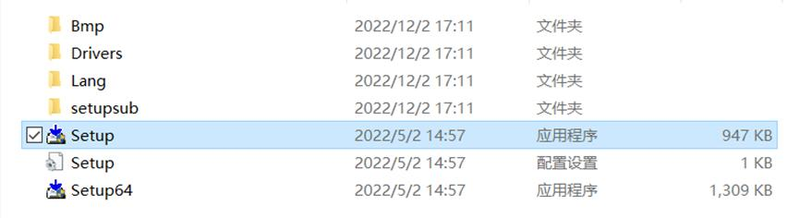
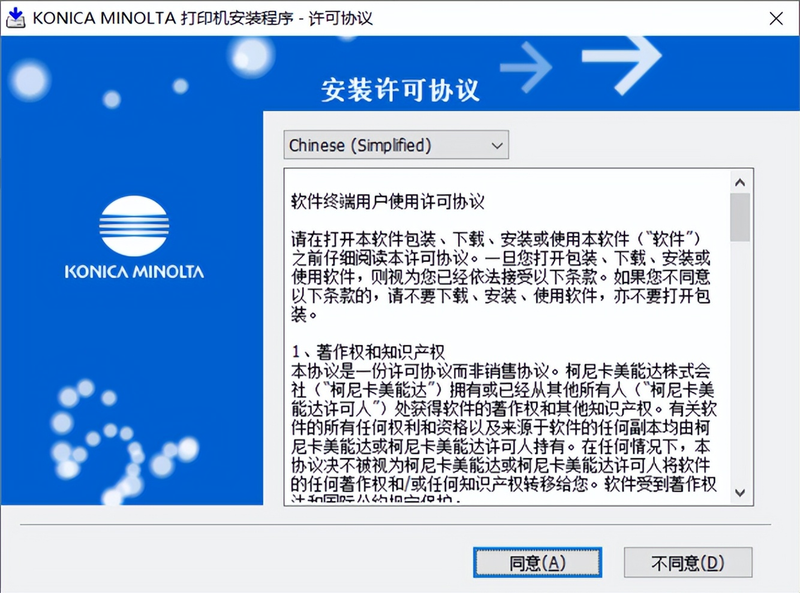
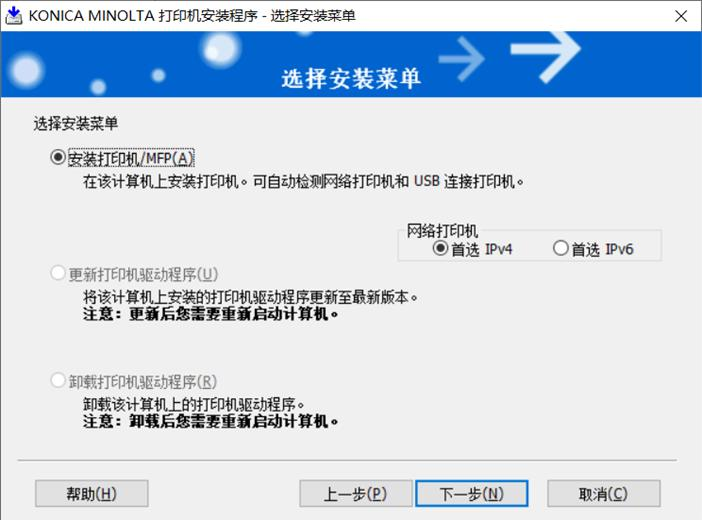
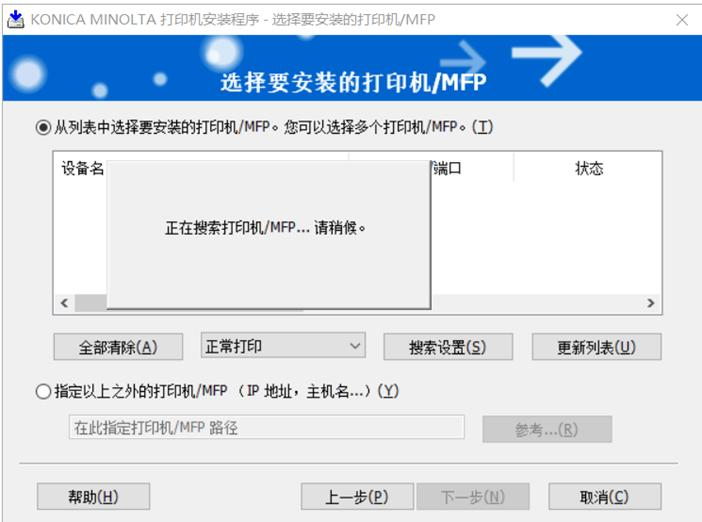
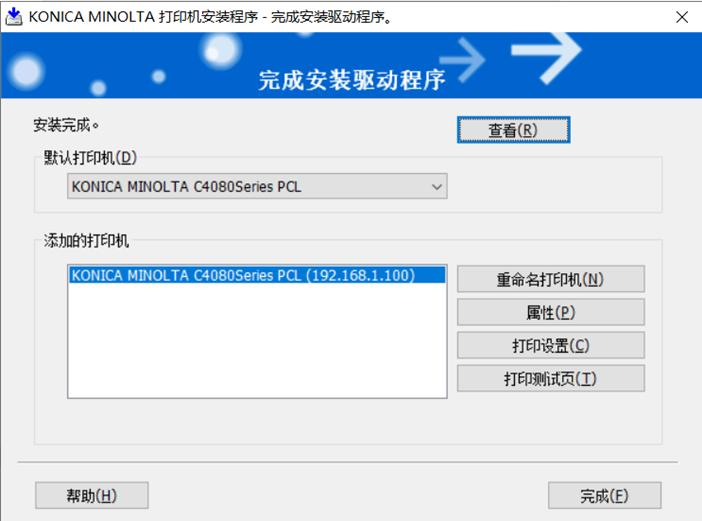
Find the printer driver, copy the driver to the computer, double-click setup. Exe, and do as you like. As shown in the figure below:
Starting configuration of printers
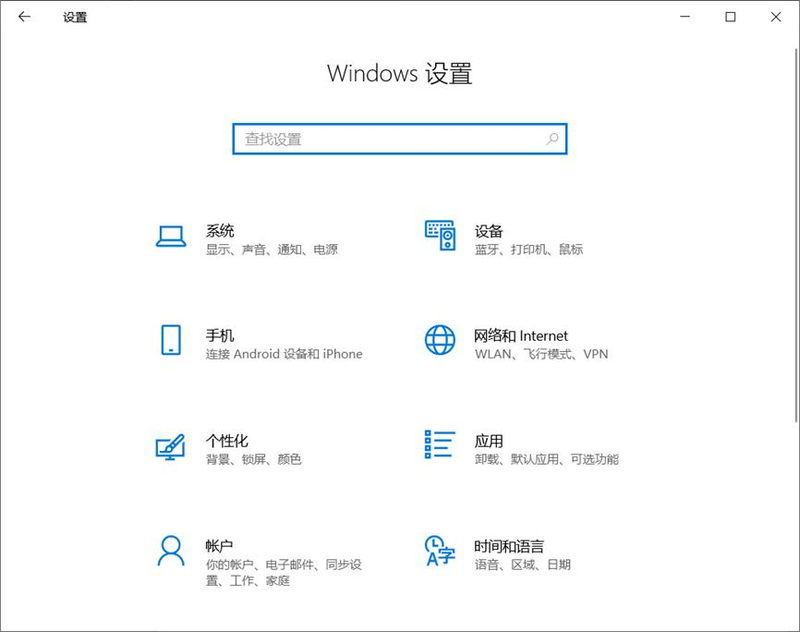
[starting] [setting] [sender] [sender and scanner] [sender and scanner)] koNica minolta c4080 series pcl) as shown in the figure below:
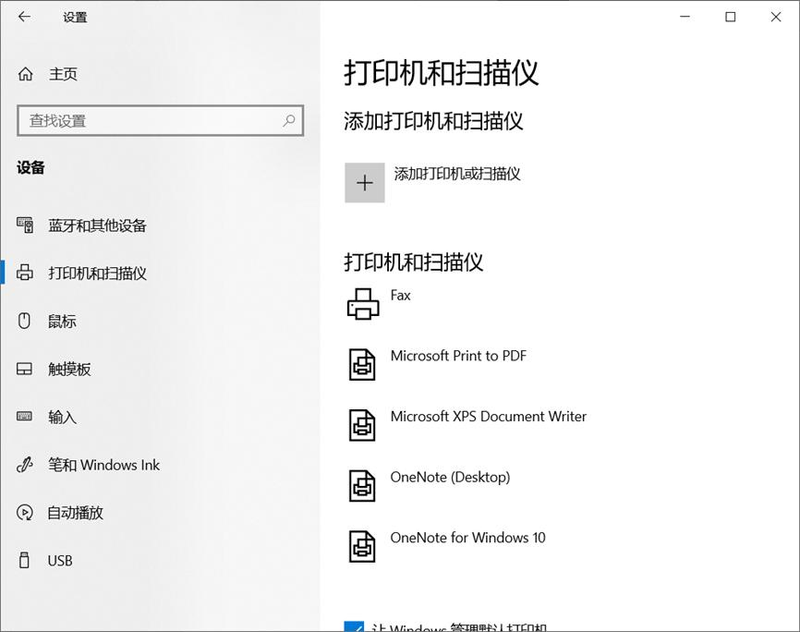
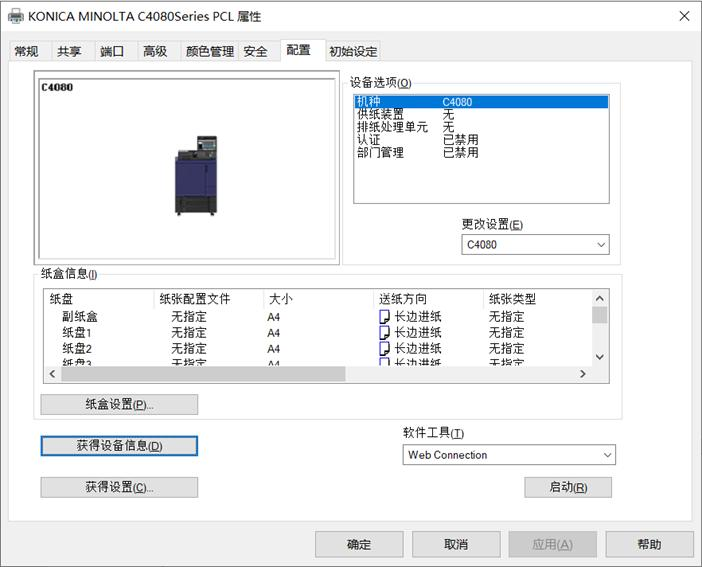
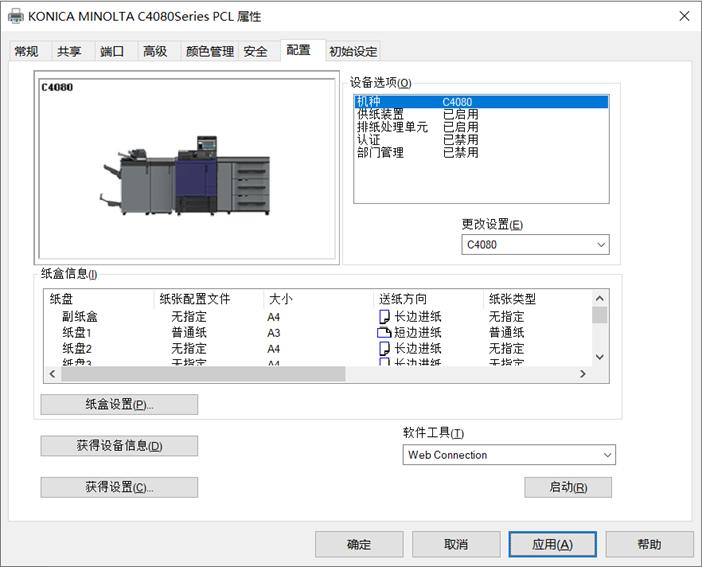
The configuration properties require printer-driven access to printer hardware equipment and cardbox information before configuration。
Click on the [configuration] tab click on the [access to device information] button, pop up the confirmation window, can you update the device information? Click [yes]. As shown in the figure below:
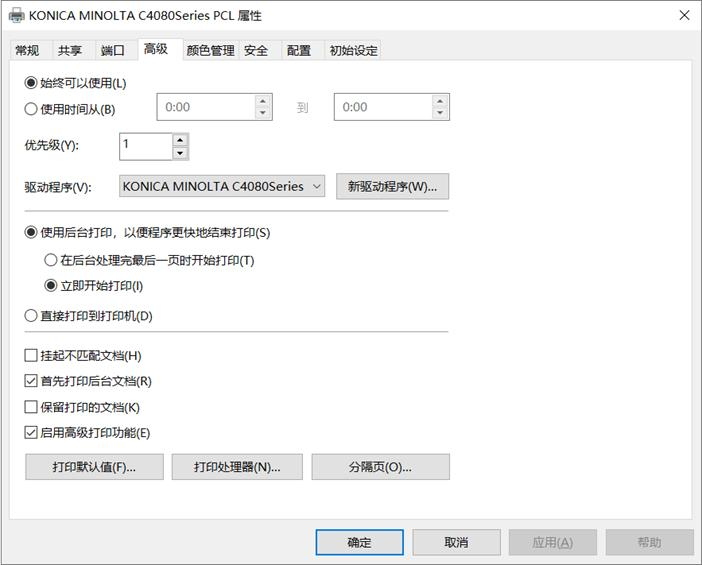
Click on the [advanced] label [paint default] button, as illustrated below:
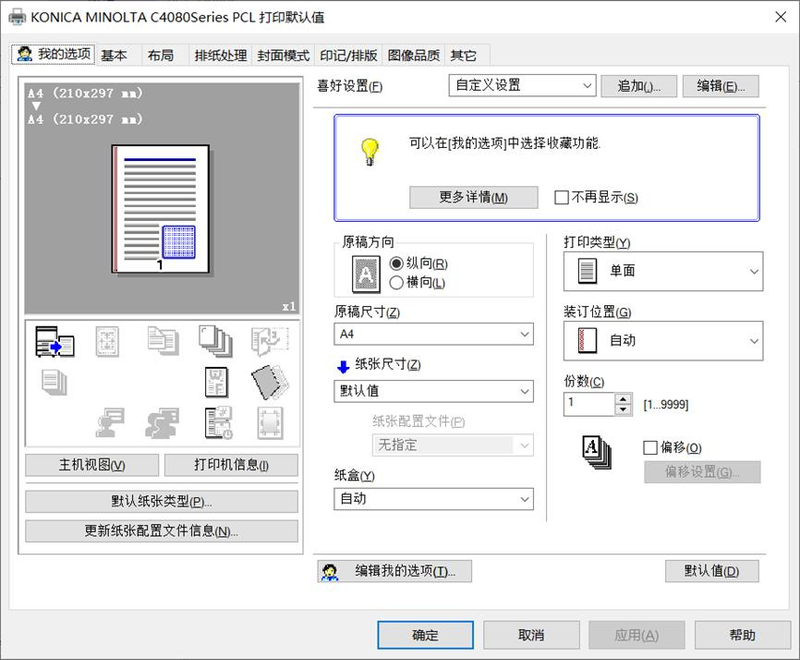
Paper size
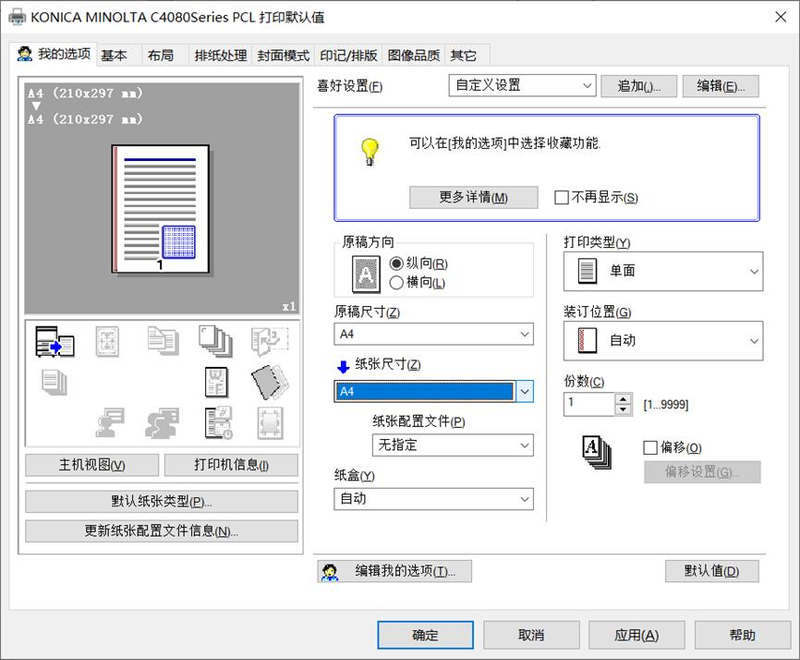
Select [sic size] and [output paper size]。
Paper sizes are: a3, a4, a5, a6, b3, b4, b5, b6, etc。
As shown in the figure below:
Print type
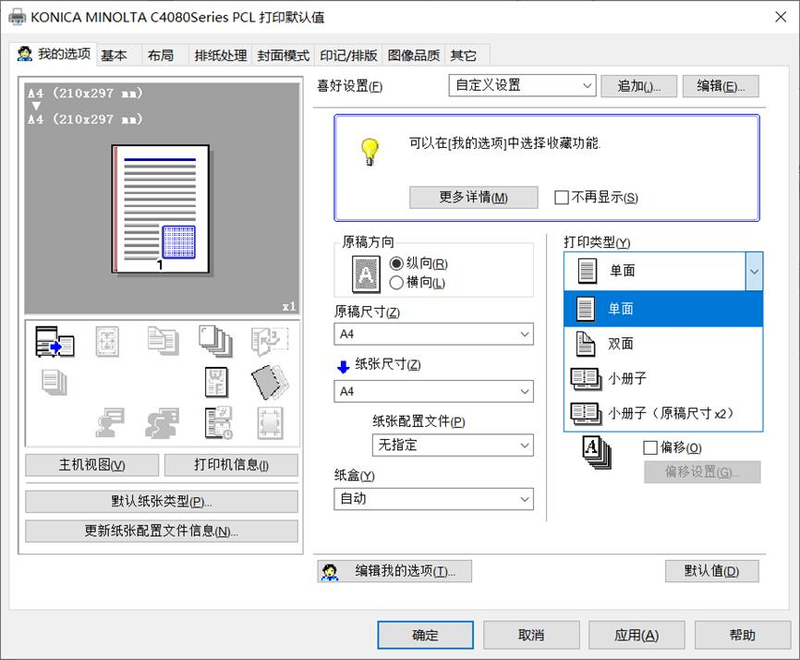
Select [print type], single-sided, double-sided, brochures, brochures (original size x 2) etc. As shown in the figure below:
Staple
Select the [paper-processing] label
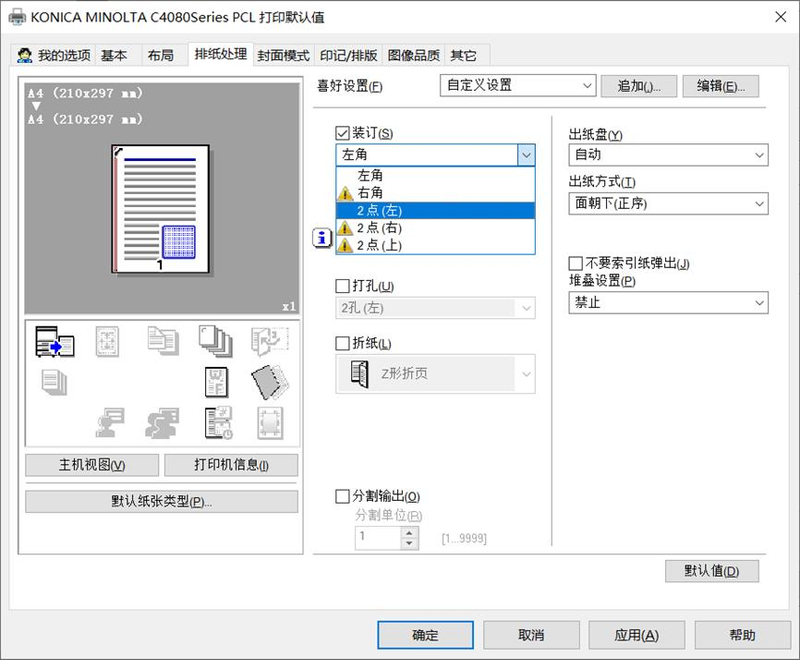
Select whether or not to [sort] and [sort position] the binding position is left, right, 2 (left), 2 (right), 2 (top). As shown in the figure below:
Note: yellow sighs is so bad as not to choose or conflict with the current choice. Two orders are given at 2 (left), 2 (right) and 2 (up)。