2 or more router cable connection settings
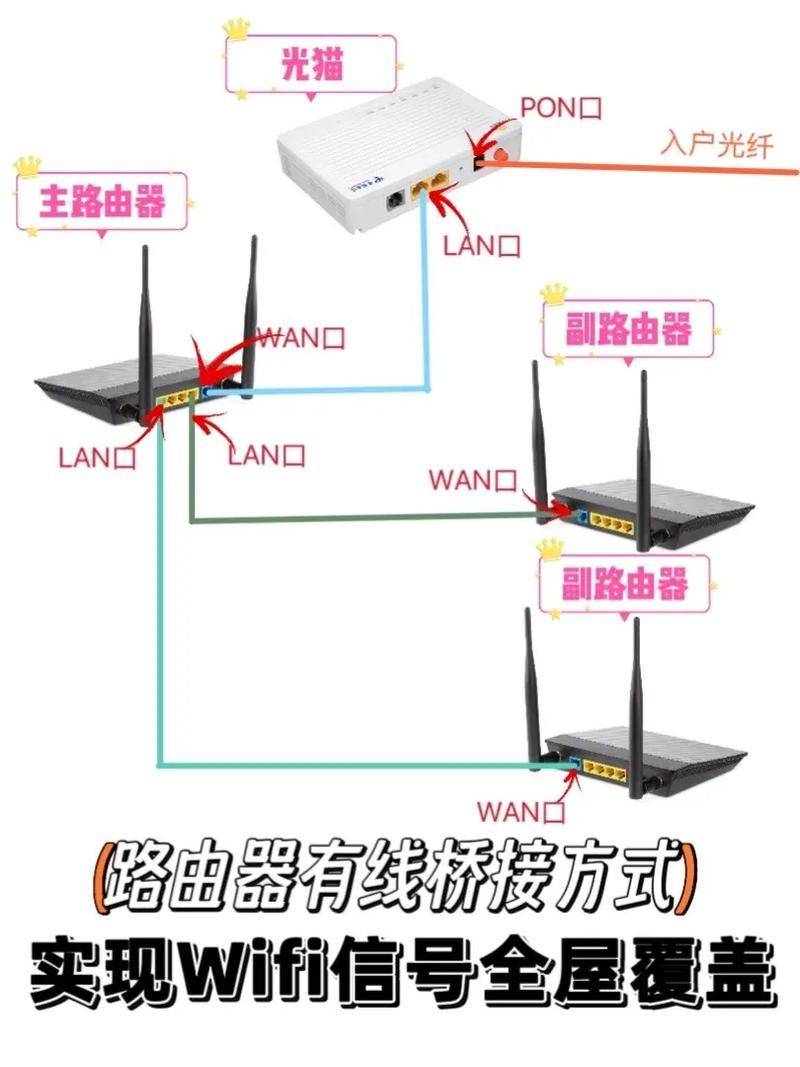
In some cases, we connect multiple routers with one network. For example, a different type of router cannot use a wireless bridge, or a router does not have a wireless bridge wds function。
First scenario: two routers, serial
The two routers have different ips, which are usually defaulted (192. 168. 1. 1 or 192. 168. 0. 1), so one dialable routerip can be set to 192. 168. 1. 1 (default), and the other routerip can not be set to 192. 168. 1. 1, otherwise the conflict can be set to 192. 168. 2. 1 or 192. 168. 0. 2, which would not be useful anyway, otherwise it will be possible to connect the wan of the two routers with a single web line, without which the dhcp computer would have to set up its own ip manually。
Second scenario: two lines (telecommunications and internet connection) need dialling
Two routers have different ips, usually by default (192. 168. 1. 1 or 192. 168. 0. 1)
A dialable telecommunication router ip can then be set to 192. 168. 1. 1 (default), then another network router ip can be set to 192. 168. 2. 1 and separate dials can be set. Two routers are then connected through the wan mouth, and the local gateway and dns are set to 192. 168. 1. 1 with telecommunications, and the dns are set to 192. 168. 2. 1 with connection. It's like that. Just keep an eye out。
Step 1 main (first) router configuration
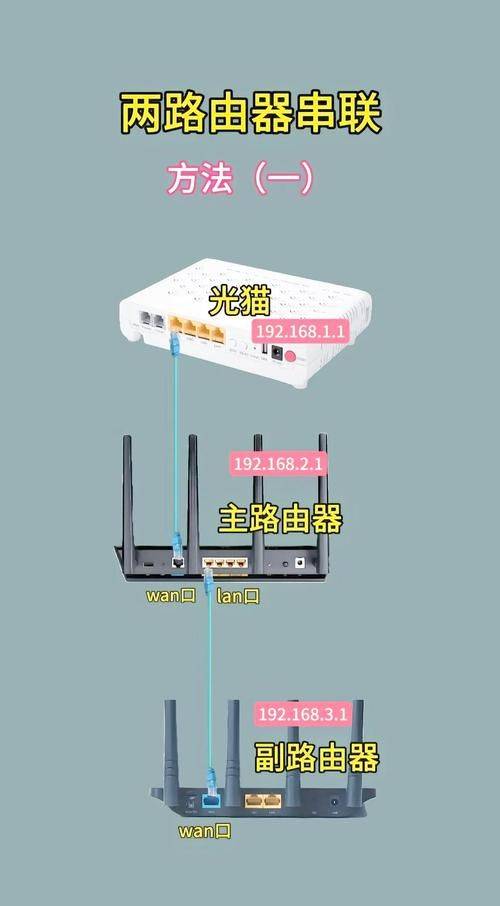
1 assumes that the router will be used to connect the external network as the first router, we use the router as the main router. If your router is the newly purchased default for the recovery of the plant, its ip should be 192. 168. 1. 1。
2 a network that is connected to the site by wire or wireless means is proposed to be connected by wire;
3. Open the web browser and enter the router landing address in the address bar: 192. 168. 1. 1 and confirm it by returning. Enter the user's admin and password admin in the popup landing box, as icons:
4 first, set the router to connect to the extranet. Click the network parameter on the left and select the wan mouth settings:
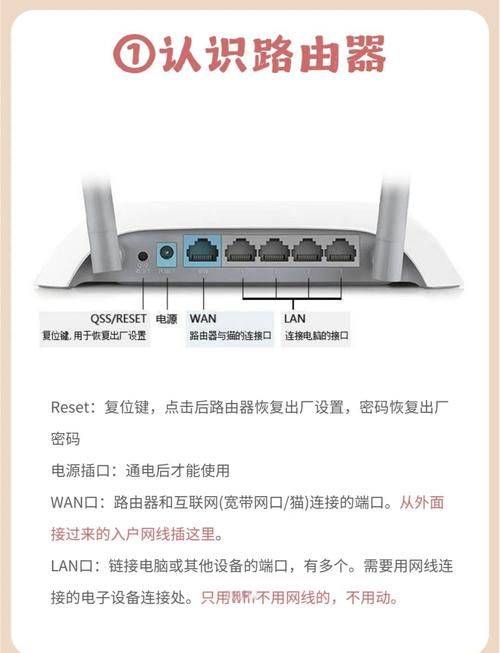
5. Select "pppoe " in "wan port connection type " , enter the correct account number and password, click on " save " at the bottom, and then click " connect " after saving around 10 clocks, as shown above;
Second, the first router needs to open dhcp services. Select dhcp server on the left, then dhcp service:
7. Set the dhcp server on the right to be “enabled”, as shown above;
Finally, in order to facilitate subsequent log-in of routers, it is necessary to confirm or change the ip segment in the ip and dhcp address pools in the back of the router. Select the network parameter on the left and select the lan mouth settings: