

How does the blue screen reload the system? Of the many computer-related tools, the flash drive has become a very common tool. Because when it's on the blue screen, it can help us quickly start the system up. You can reload the system through it if you need it. It's not complicated in its overall operation, so let's take a look at the steps of the system。
I. Tools needed for system disk reloading
System version: windows 10 version
Installation tool: large cabbage pallet starter (red-click download)
Ii. Preparation of systems for reloading
1. Before re-installing the system, it is recommended that everyone check the overall state of the computer, for example, whether the hard drive is bad or not, in some cases like repair. After all, the reloading system is mainly designed to operate on hard drives, and first checking would be safer。
2. There are many matters to be noted in the production of the flash drive, such as the early closure of the safe-killing software, as the production process involves system files and can easily be killed by mistake, leading to the failure of the drive starter and affecting the final system installation。
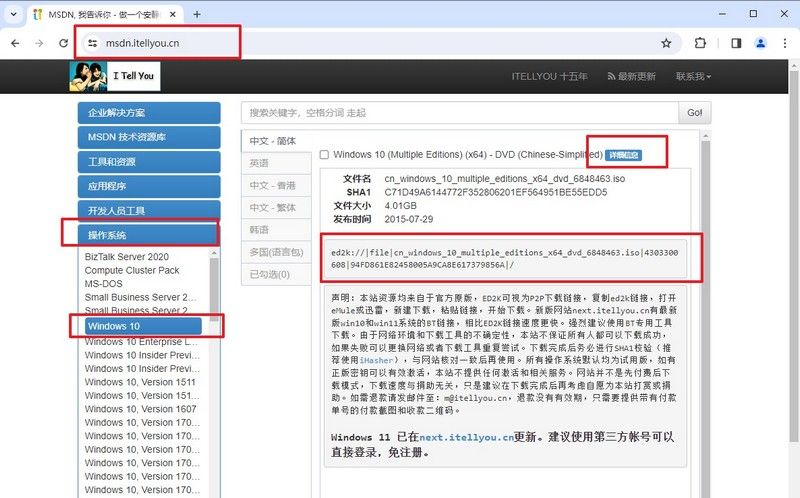
Three, windows mirrors, to use safe and secure, after all, computers are problematic when no one wants to reload the system. You can download it on "msdn i told you" website, as shown in the graphic, and then click on it。
Iii. Operational steps for the reloading of the system disk
First, make a flash drive
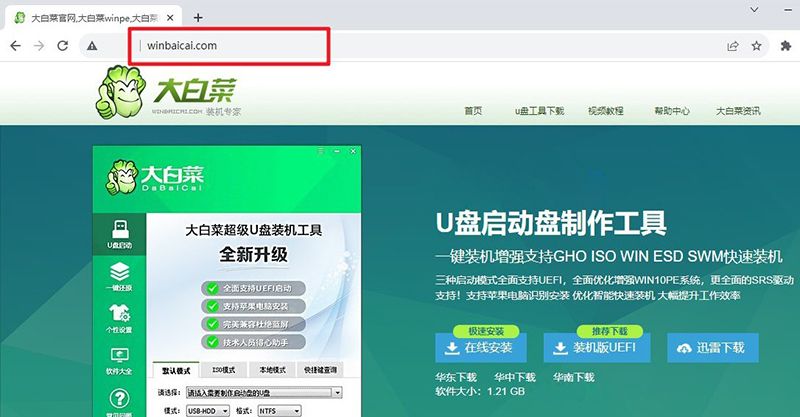
Access to the official network, downloading the latest version of the large cabbage disk startup tool to connect the flash drive to the computer。
2 then, as the figure shows, the default mode and format of the flash drive is clicked to make it。
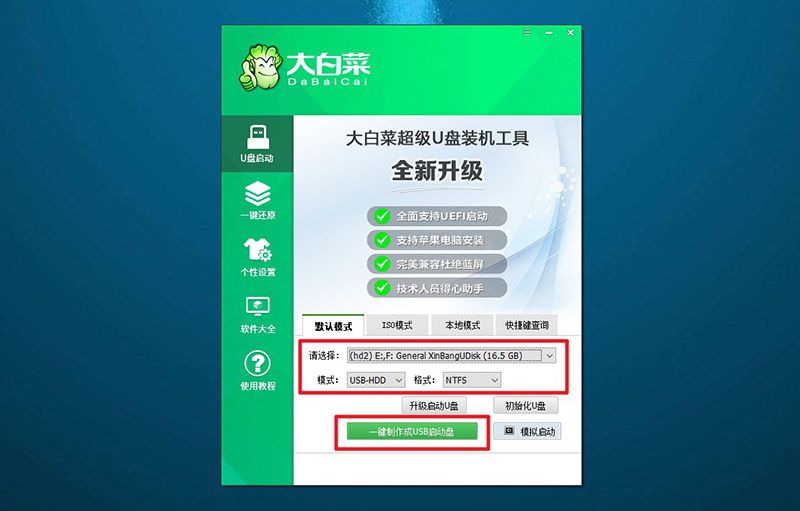
Note: the preparation of a large cabbage pallet starter will first format the cleanup of the data on the disk, with the need for advance backup。
Then set up a flash drive to start the computer
1. The ud-start shortcuts for different computers are not the same, either by searching on the official network or by clicking on the jump。
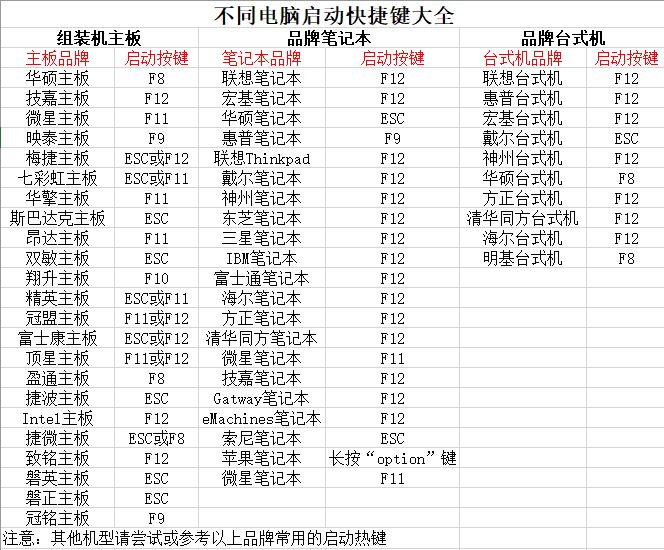
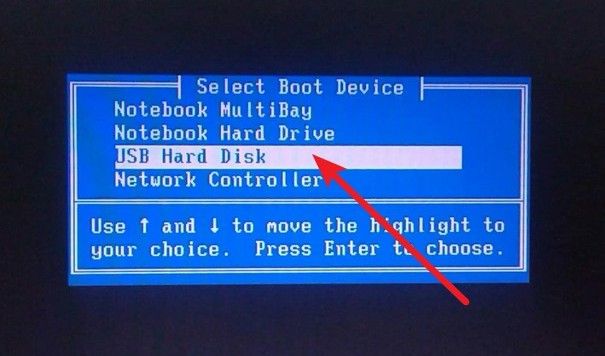
Computer access to the flash drive, which is activated by pressing the flash button to enter the priority start entry setting interface, is selected to start the drive and return to the next step。
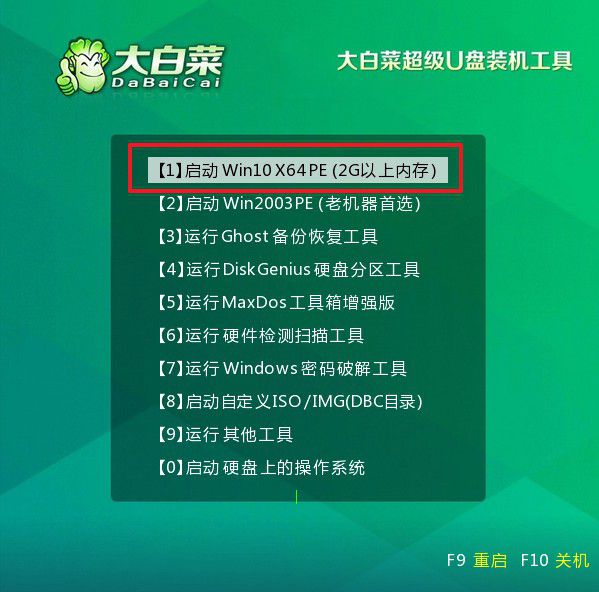
Three, on the main cabbage menu interface, we just have to pick one and press the car back。
In the end, the flash drive starts the system
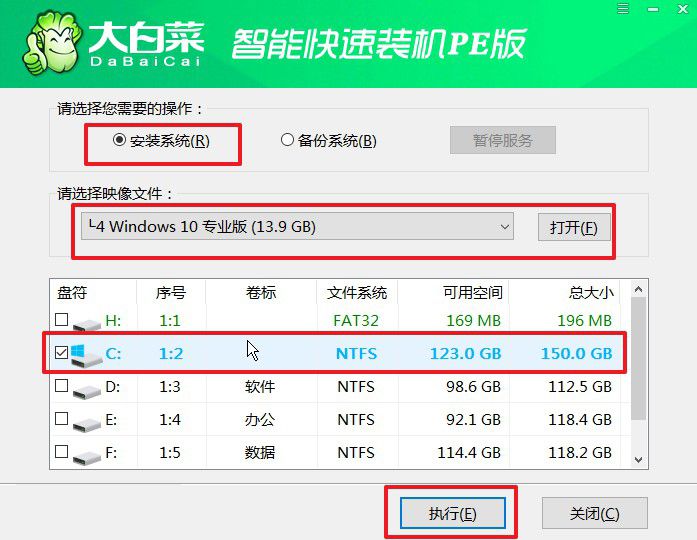
Upon opening the cabbage-based machine software, windows mirrors are installed on " c-disk " and click " execute " 。
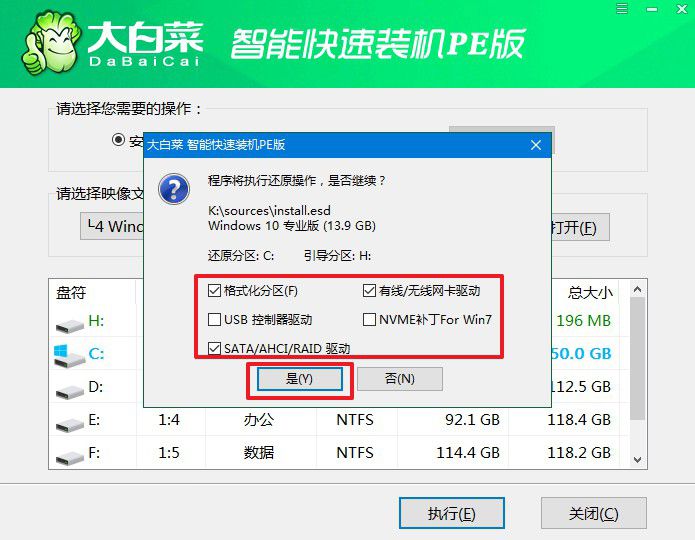
2. When entering the cabbage return interface, it is generally not necessary to set itself up and click " yes " , waiting for the software to operate itself。
3. After eject the cabbage system installation progress interface, verify the relevant information and select "to restart after completion"。
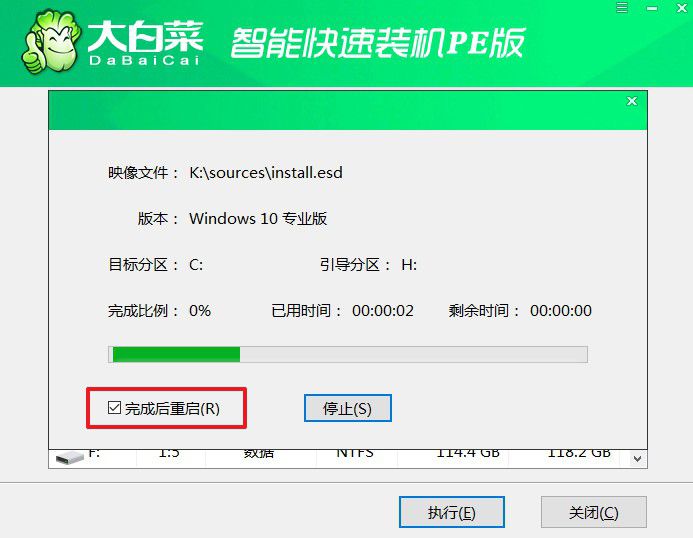
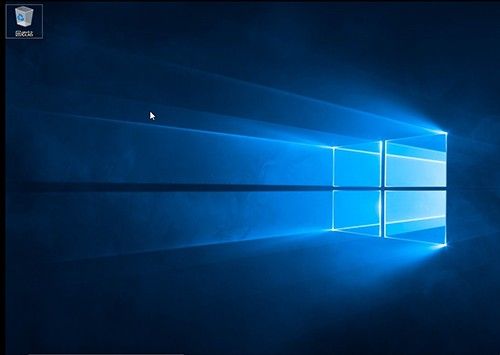
4. Depending on actual installation requirements, computers will be restarted several times and will not be operational until the windows system is installed。
Iv. Common failures in reloading systems
How to divide the system after reloading
Open disk management: right-click this computer or computer, select management. In the computer management window, select disk management。
Select the target disk: in the disk management window, you will see all disks and partitions on the computer. Select the disk you want to partition。
3. Right-click selection: for undistributed space, right-click and select new simple volume. For existing partitions, you can choose to shrink, expand, delete, etc., depending on your needs。
Operation by a wizard: for the creation of a new simple volume, a new volume wizard will pop up and operate as a hint. You need to select partition sizes, assigned drive numbers, file system formats, etc。
5. Complete partition: upon completion of the wizard, the system will format and assign new drivers. The partitioning process may take some time depending on your hardware performance and partition size。
How does the mouse fail after reloading
Check the mouse connection: ensure that the mouse is correctly connected to the computer. If you have a wired mouse, check if the connection is normal. In the case of a wireless mouse, ensure that the battery is sufficient and the receiver inserts the computer correctly。
Replace the mouse port: try to connect the mouse to different usb ports on the computer to ensure that the port is not problematic. If it is a wireless mouse, try to replug the receiver。
3 check device manager: in windows, open the device manager to see the state of the mouse and other pointer devices. If there is an exclamation mark or a fork mark, this may be the driving procedure. Right-click on the problem device and select the update driver to operate with a hint。
4. Driver re-install: unmount the mouse driver and re-install the latest version of the driver. You can find the mouse device in the device manager, right click and select unmount device。
That's what the blue screen reloading system is about. The flash drive is working, provided that there is no problem with production. So let's not forget to turn off the safe-kill software before you make a flash drive. The software will also be downloaded from the official network, with more detail, to ensure the security of the flash drive。