


Brief: in the daily use of computers, problems of system collapse, slow running, infection with viruses often arise. At this point in time, the reloading system becomes one of the effective solutions to these problems. This paper provides details on how to use the system's cd-rom re-loading system, including the tools, operational steps, attention, enabling technology lovers and computer white users to easily master this skill。
Tool raw materials:
System version: windows 10 or windows 11
Brand type: dell xps 13 9310, hp spectre x 360 1 lenovo thinkpad x1 carbon gen 9
Software version: windows 10/11 install cds or iso files
I. Preparation
Backup critical data: before reloading the system, it is important to back up critical data from the computer. External hard drives, disks, cloud storage services can be used to back up and prevent data loss。
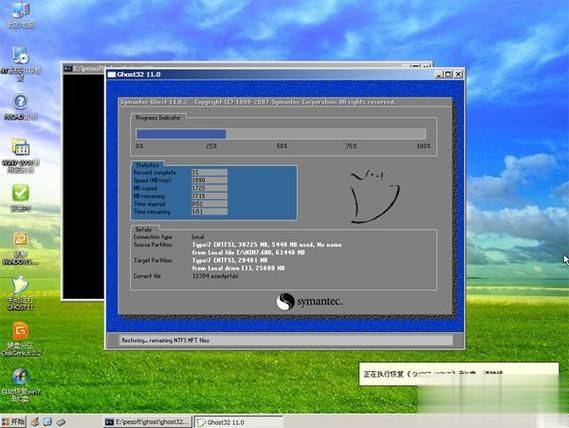
Access to the system cd-rom: ensure that there are active windows 10 or windows 11 cd-roms in hand. If there is no cd-rom, iso files can be downloaded from the microsoft official website and recorded on dvds using burner software。
Preparation driver: the re-loading of the system may require the re-installation of the hardware driver. It is recommended that the drive required by the computer be downloaded and stored in advance。
Ii. Steps of refirmation systems
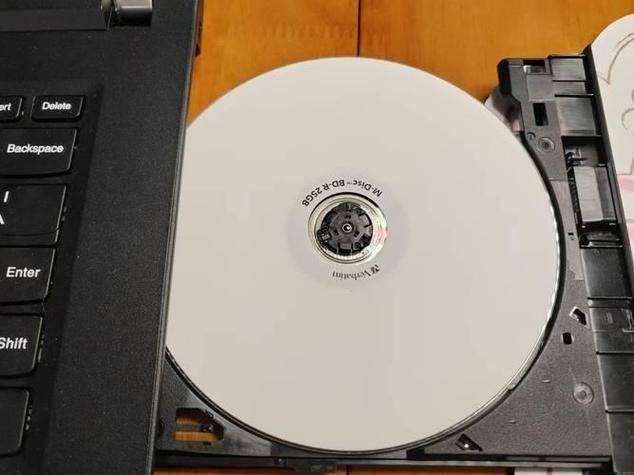
Insert system cd-roms: installation of windows cd-roms into computer optical disks. If an iso file is written on cd-rom, it is also inserted in the optical drive。
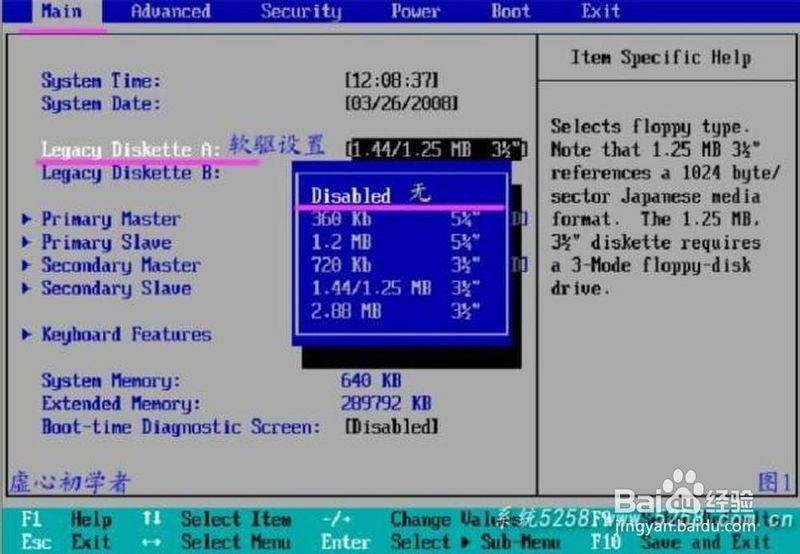
Enter the bios settings: reboot the computer and enter the bios interface by pressing the corresponding shortcut key (e. G. Ff1del, etc.). Computer shortcuts may vary from brand to brand. Please refer to the computer instructions。
Sets the cd to start: in the bios interface, the "boot " option is found, setting the pv to the first starter. Save settings and exit the bios, the computer starts on cd-rom。
Launch installation: the computer will enter the windows installation interface when it is launched on cd-rom. Language, time frame, keyboard input method, click " next step " and then " install now " 。
Enter the product key: if the system requires the input of the product key, enter the original windows product key. Without a product key, you can "i don't have a product key" and activate later。
Install type: in the interface "what type of windows do you want to install? " , "customise: only windows (advanced)。
Partition, formatting: in the interface " where do you want windows to install? " , the partition where the system is located, click formatting for formatting. Note that formatting removes all data from the partition and ensures that important data are already backed up。
Commence installation: once the formatting has been completed, the partition and click " next step " will begin installation. The installation process may require some time and patience。
9. Complete installation: once installed, the system will be automatically restarted and enter the initial settings interface. Do user account settings, network connections and so on, and eventually enter the brand-new windows desktop。
Iii. Installation of drivers, software
Installation driver: after entering the system, install a card driver to ensure that the computer is connected to the network。
System update: once the driver is installed, it is recommended that the system be updated immediately. Open settings - > update, secure - > windows updates to check and install all available updates。
Installation of common software: installation of common software, such as browsers, office software, poison-killing software, etc., according to individual needs。
Knowledge development:
History of the system's cd-rom: as an installed medium, it dates back to the 1990s. With the development of the optical disk technology, the optical disk system is becoming one of the main means of installing the operating system. The frequency of use of the system's cd-rom has decreased in recent years with the spread of diskettes and network installations, but remains one of the important means of installation。
Bios, uefi:bios (basic input/output system) is the traditional solidware interface used to activate computers, load operating systems. In recent years, uefi (unified extensible fairmware interface) has gradually replaced bios, providing faster start-up speed and greater security. When using the system's cd-rom re-assembly system, understanding the differences between bios and uefi would help to make better arrangements。
The importance of a back-to-back system: the use of a back-to-back operating system not only allows for better user experience but also allows for timely security updates and technical support. The piracy system may have security risks and be vulnerable to viruses and malicious software attacks。