When you load the system, is the partition format good for mbr or guid? Recently, a number of netizens have asked me questions about the type of partition table: “when installing the system, is the partition format mbr good or guid good?” this is indeed a subject worth exploring in depth. We know that the current mode of guidance is divided mainly into uefi and legacy, while the selection of the type of partition table is closely related to the mode of guidance. If the uefi mode is used, the corresponding subdivision type is guid (gpt) and if the subdivision type is legacy, the corresponding subdivision type is mbr. So the choice of mbr or guid when you install the system actually depends on the mode of guidance you use。
In order to help you better understand and make choices, this paper will provide a detailed analysis of the characteristics of the mbr and guid partition tables, the applicable scenes, and how they were selected during the installation of the win10 system. At the same time, we will provide detailed operational steps to ensure that you can successfully complete the installation of the system. It is hoped that, through this paper, you will have a clearer idea of the type of partition table and make the choices that best suit your needs。
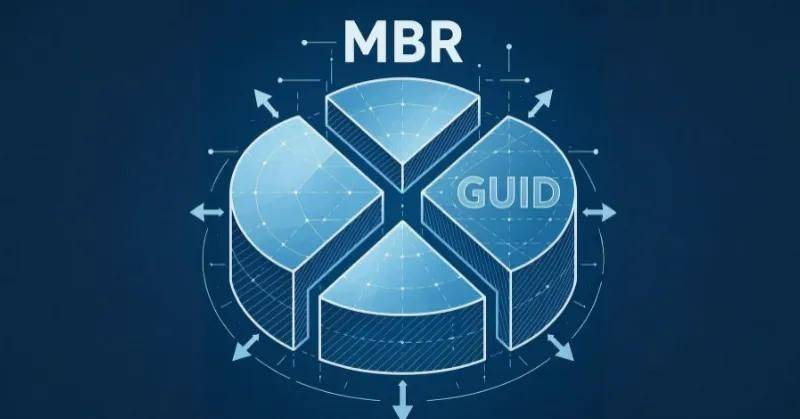
What's good for a partition table type mbr and guid?
We know that the current mode of direction is two mode of guidance: effi and legacy (uefi versus legacy start-up mode in depth: technical origin analysis of starting speed differences), and if the efi guide model is followed, the type of partition corresponds to gpt subdivision (guid), and if the guide model is followed by legacy, the corresponding type of partition is mbr. Mbr and guid (gpt) are two core disk partition table types, with no absolute “better”. Briefly: win10/11 gives priority to gpt when supporting the uefi model, and old computers (win7 and below) or small volume hard drives (<2tb) select mbr more steadily。
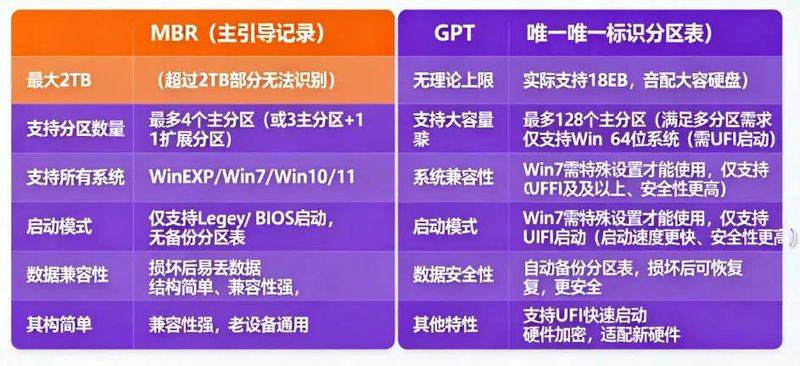
Selection of gpt (guid) (recommended for most new computers)
You're using win10/11
Hard drive capacity ≥2tb (e. G. 4tb, 8tb machine hard drive/ solid hard drive)
The main board supports uefi start (now the new board is largely supported, start faster, safer)
More partitions (e. G. More than 4 main partitions with different systems/ data)
Seek data security (e. G. Storage of critical files, gps partition table damage recoverable)
2. Mbr selection (old equipment / special scenario)
You use win7 and the following systems -- systems that don't support gpt startup
Hard drive capacity < 2 tb (e. G. 500gb, 1tb hard drive, mbr fully adequate, non-depletion)
The main board only supports legacy bios startup (old master board, old notebook common)
Need for old compatible devices (e. G. Multisystems, including win 7 and below)
Equipment for industrial equipment, old servers (dependent on legacy bios compatibility)
Summary:
New computers, large hard drives, win10/11 users: directly choosing gpt+uefi, taking into account speed, capacity and safety
Old computers, small-capacity hard drives, win7 and the following users: "mbr+legacy bios", full compatibility and avoiding pit-pumping。
Why would win10 or win11 suggest the use of guid?
The system installation requirement for win 11 is the uefi-led model, which corresponds to the guid partition table. The eufi launch is a new master board guide that is seen as the successor to the bios. The most important feature of uefi is the graphical interface, which is more conducive to the user object's graphical operational choices. Uefi only supports 64 systems and disk partitions have to be gpt mode, and traditional bios uses int 13 to interrupt reading disks, which can only read 64kb at a time, which is very inefficient, while uefi can read 1mb at a time and loads faster. In addition, win10 and win11 further optimized the uefi support, stating that it could be activated in an instant. If the machine supports efi, the installation of the win10 system is still good, and the uefi mode guides the type of the guid partition that matches, which can speed up the start-up。
What should we care about when choosing mbr or guid?
1. The start-up mode and partition table shall match:
Uefi can only start with gpt; legacy bios can only start with mbr。
2. Prefer gps+uefi:
Supports trim optimization (extension of life)。
3. Win7 installs with uefi+gpt:
Note that the original win7 does not support the uefi guidance and requires the third-party pe installation and repair of the guide。
4. Data backup: if hard disks are partitioned to convert type (mbr→gpt or vice versa):
All data on the hard drive will be emptied and important files must be backed up first (with the diskgenius, windows disk management tool conversion)。
Example: system partition step (guid partition course) dale machine
1. Lead mode settings:
(b) the engine has been running on f2 into bios, f2 into the bios interface, switching to boot sequence, and if the boot list opion guide model chooses to be efi, we correspond to the type of partition that should be given to the guid partition, as shown in the figure below
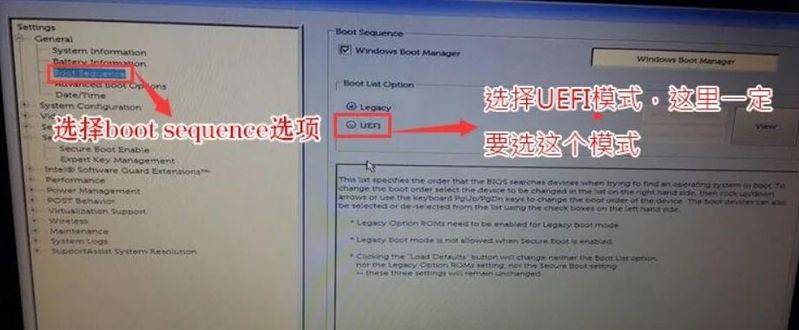
2. Select the guid (gpt) type when partitioning:
1. Insert to make a disk starter, press f12 on rebooting, open the quick guide menu, and select the recognized drive startback from the drive, as illustrated below
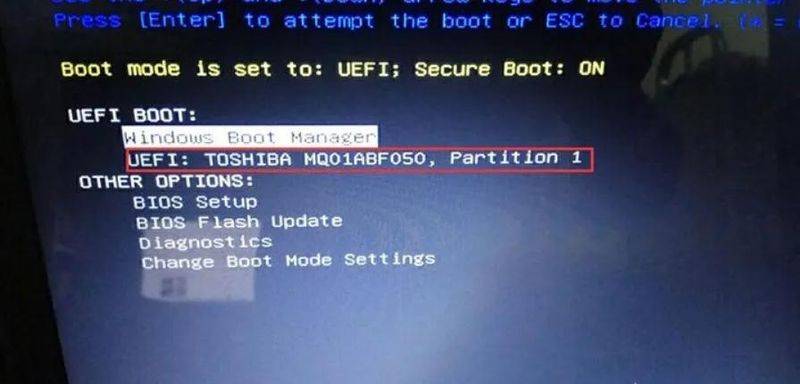
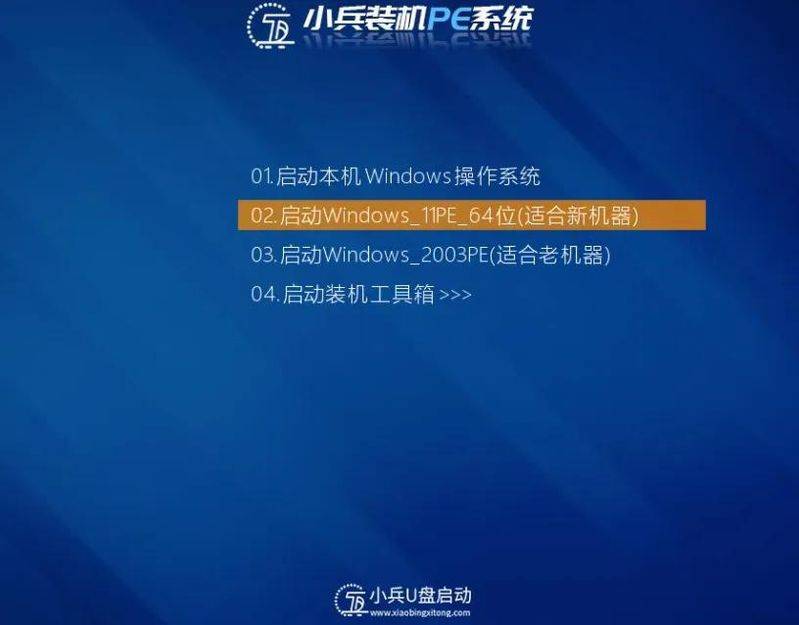
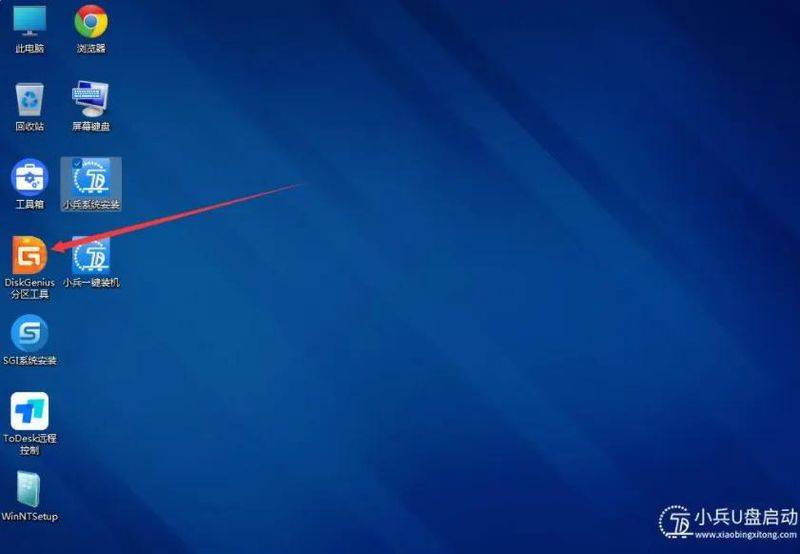
2. Select to start the windows 11pe 64-bit entry pe (menu selection at mbr start-up, automatically into win11pe at uffi start-up), and to run the diskgenius partition tool on the desktop, as shown in the figure below
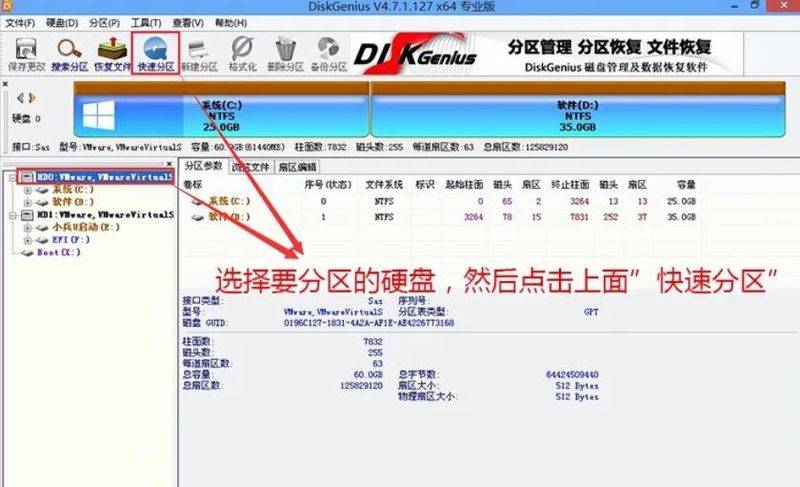
3. Click on [hard disk] of the menu bar, select [converted partition table type in guid format], or directly select the hard disk of the partition, click on [quick partition] above, as shown in the figure below
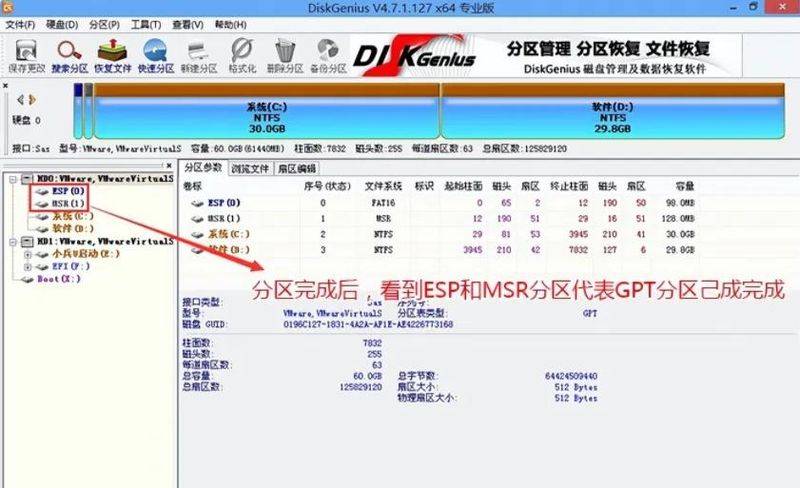
Note: if the partition tool is available in the esp and msr partitions, it means that it is currently in the guid (gpt) partitions, it can be done without re-division and can skip this step to install the system directly。
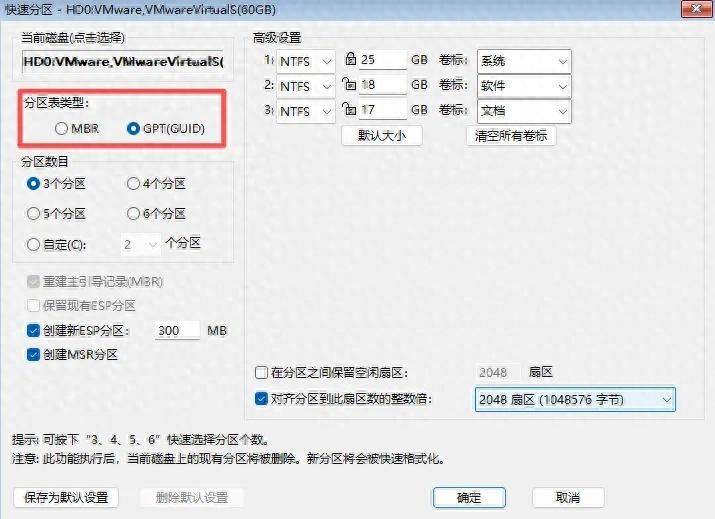
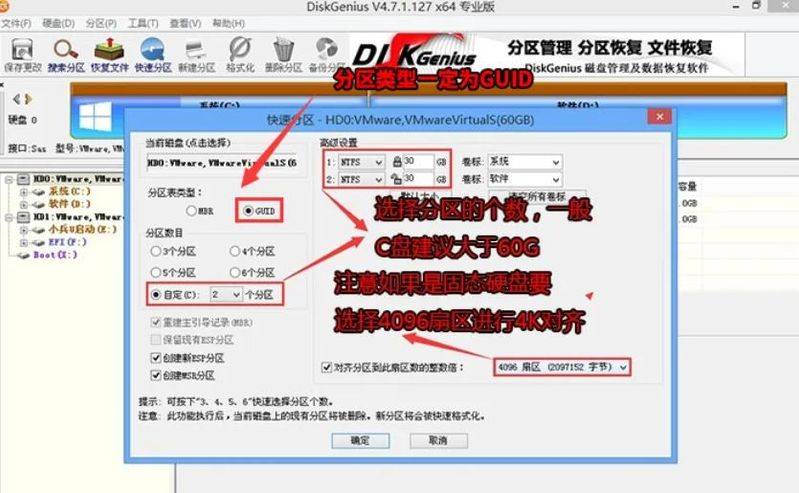
4. At the [fast partition] interface, where we select the number and size of the type of guid and partition, it is generally recommended that the size of the c disc be greater than 60 g, and then be careful to align the 4k if the hard drive is solid, as shown in the figure below
5 upon completion of the division, it can be seen that the esp and msr divisions are completed on behalf of the gpt division, as shown in the figure below
System step installation
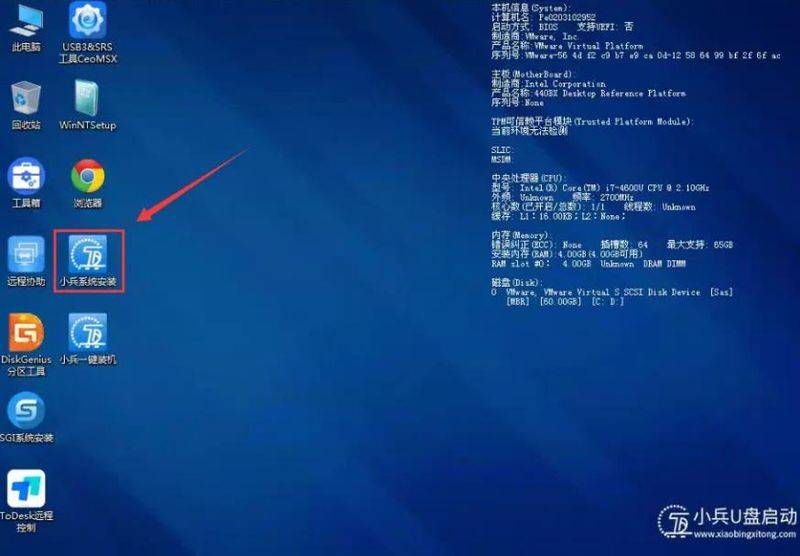
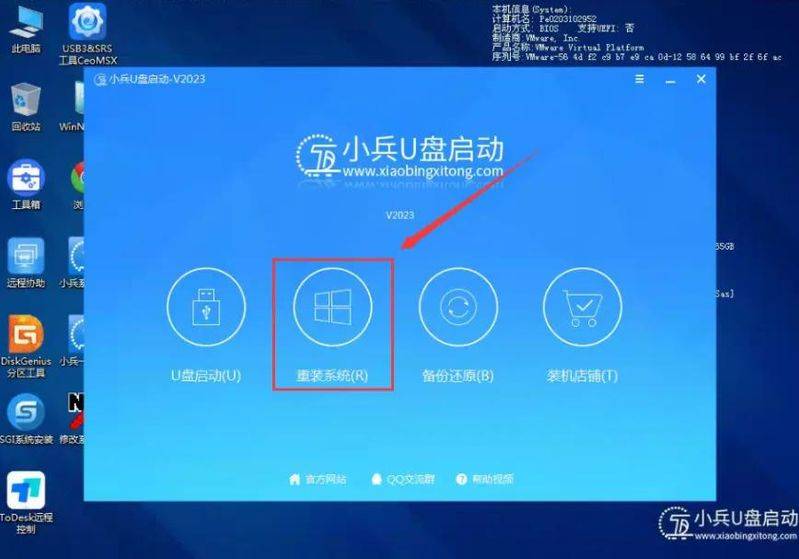
1. Upon entry, and after completion of the above operations, the "smalls system installation" tool for the operation of the pe desktop is selected for reloading, as shown in the figure;
Whether the partition table type is mbr or guid's question answers are good:
Question: the main board supports uefi. Do you have to choose guid
No, but it's recommended! Uefi+guid is the best combination to make quick start and safe start; if you need to install old systems like win7, you can also select mbr under uefi。
Question: would converting partition table type (mbr→guid or vice versa) throw data away
Yes, whatever tool is used to convert, all data on the hard drive will be emptied and important files (photos, documents, software installation packages, etc.) must be backed up。
Question: can third-party tools (e. G. Diskgenius) change the type of partition table
Yes, but no midway changes are recommended when installing the system, preferably by identifying the type of partition table at the start-up of the u-disk, or by selecting directly in the “disk partition” step of the system to install the interface (rebuild all partitions after they have been deleted and select the corresponding partition table type)。
Q: old computer upgrade win10, old mbr should be changed to guid
No forced changes. If the hard drive is <2tb, start normal, keep mbr; if you want to experience uefi quick start, supported by the master panel, you can then reset the data and convert it to guid。
Question: can't computers turn on the wrong partition table type
Yes. For example, the selection of guid (gpt) but the main panel is set to be launched by legacy bios, or the selection of mbr but set to be started by uefi, will make it impossible to direct the system, redo it and match the partition table and start mode。