

It's the win10 system that's supposed to be installed in mayday v730. Since self-assessing win10 is not easy to reassembly, but it is by default uefi+gpt that gpt partitions cannot be installed directly by hard drive installation, and win10 must be re-assembled with a flash drive, but when it is installed with a flash drive, it is not possible to find a flash drive, so how do you want to install the win10 system with the skyv730 notebook? How do you set up the drive? I'll teach you the next computer how to operate。
I want to see the next step in the v730 laptop system:
Preparatory work before installation
One, prepare a disk of 8g space size
2 ucd tool downloads: ucd tool downloads (pe feature 1 does not bind any software starters). 2 supports the automatic restoration of the uefi+gpt guide by pe. 3 in support of legacy/uefi dual orientation. 4 ,pe supports the injection of usb3. 0, card-driven, nvme patches and nvme-driven) (production of udp-started video tutorials) some flash drive doesn't support gps partition after installation
3. Un-win10 download: win10 download (win10,1903)
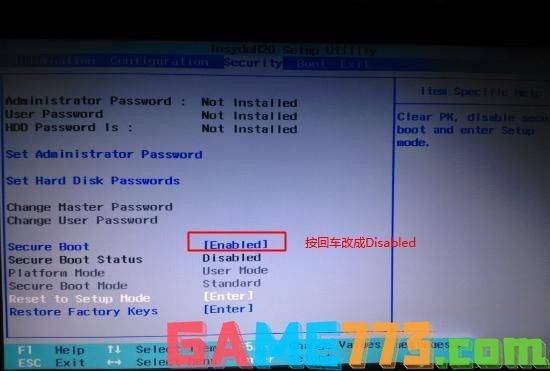
Ii. The initial step of the bios set-up of the v730 installation of the win10 system (a significant step in the installation of the win10 system),1 the opening of the engine has been going into bios by f2 or (fn+f2), switching to security by the spin button, choosing to set secure boot's return to disabled and to shut down the safe start, or to make the traditional bios disk unrecognized, as shown below
Note: return to configuration, see sata coNtroller mode, if the default hard drive mode is raid or rst mode, change the hard drive mode to ahci mode, otherwise the hard drive cannot be recognized after entering pe, as shown in the figure below
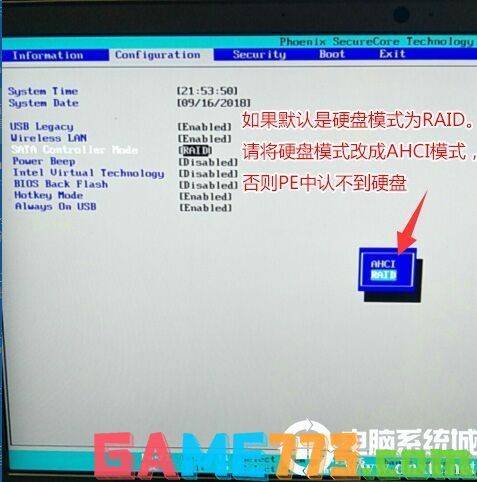
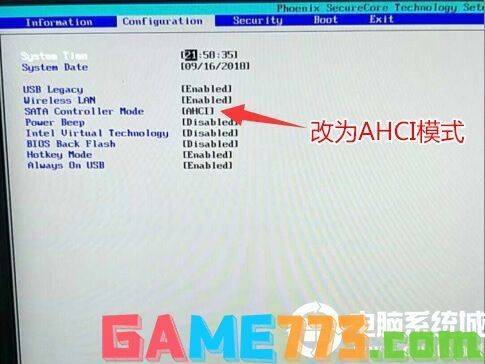
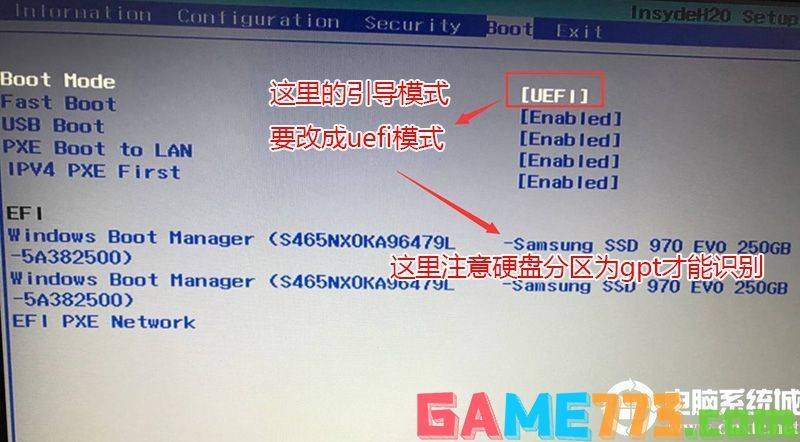
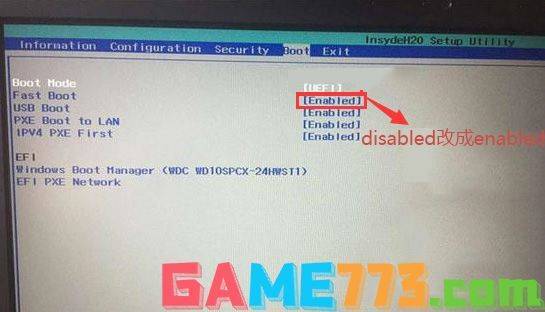
3. Switch to boot, change boot mode to uefi only, then change fast boot default disabled toenabled, start the quick start settings drive and save it by f10, select yes in the popup option, as shown in the figure below
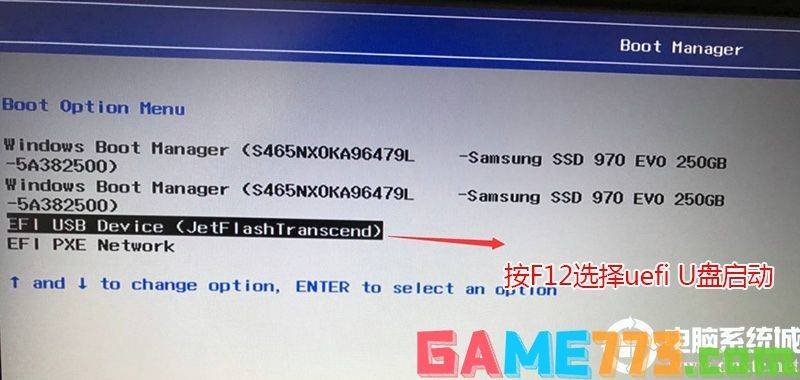
5. Insert the created drive starter and restart the start management dialogue by pressing f12 or fn+f12. The default is to select the usb hdd starting with afi to recognize the drive into the pe and return to the vehicle because it is the guide to ifi
Iii. Linking to the zhang tianxian v730 notebook: gpt (gpt partitioning step) for a certain type of zone win10
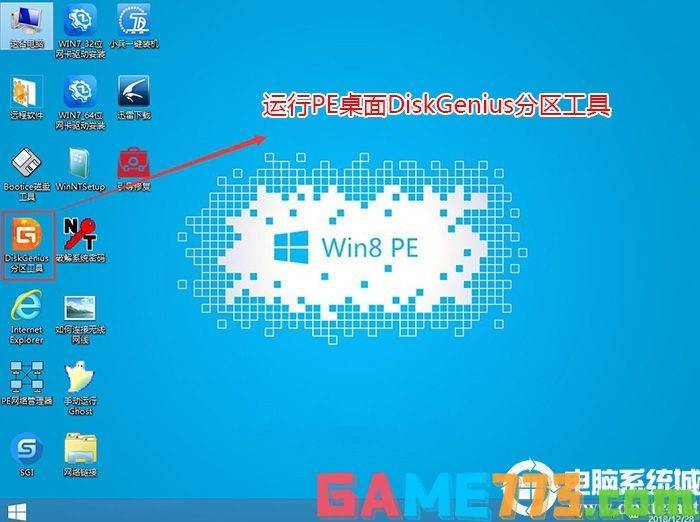
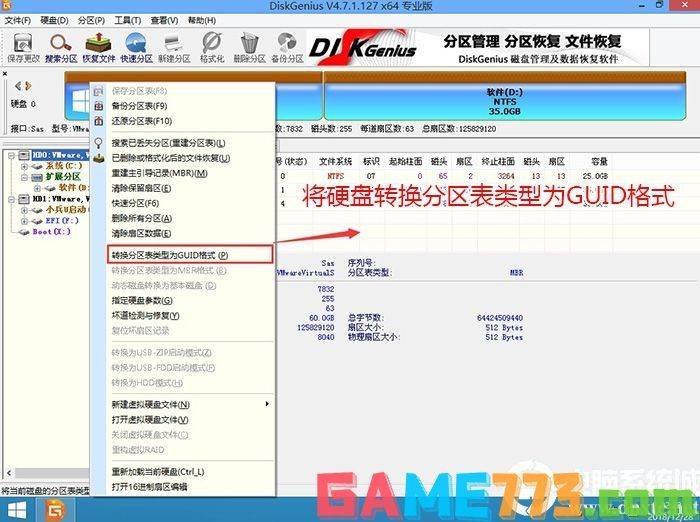
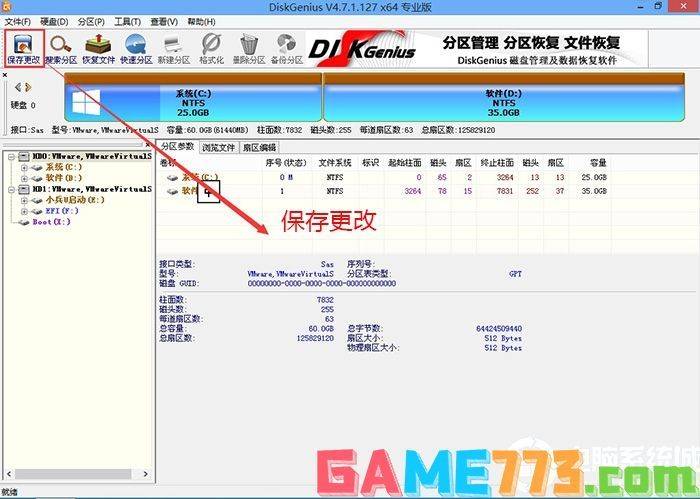
1. Run diskgenius partitioning tools on the desktop, click on the hard drive of the menu bar, select the conversion of partition table type to the guid format, and save the changes, as shown in the figure below
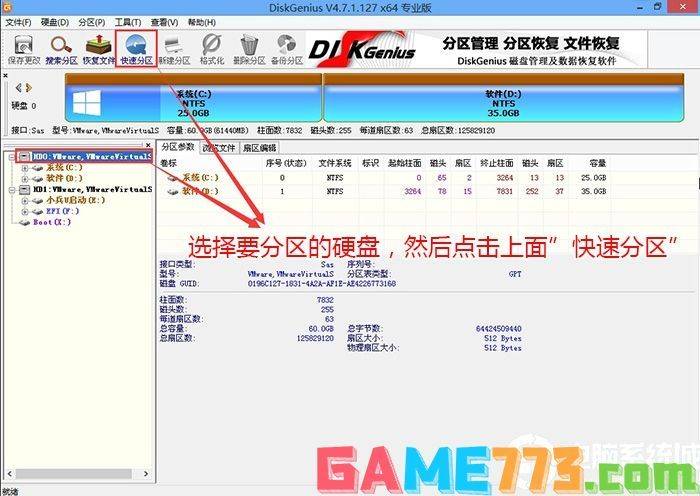
2 and then select the hard drive for partition, click on the fast partition above, as shown in the figure below
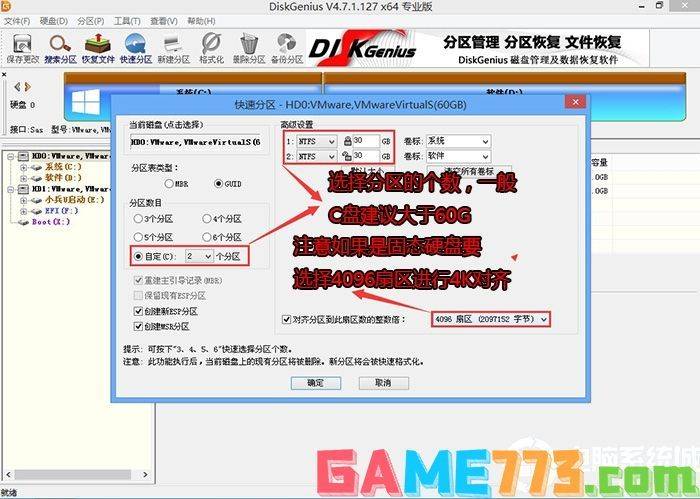
3 at the pop-out fast-diving interface, we select here the number and size of the type of guid and partition, and here it is generally recommended that the size of the c disc be greater than 60 g, and then take care of the 4k alignment if the hard drive is solid, as shown in the figure below
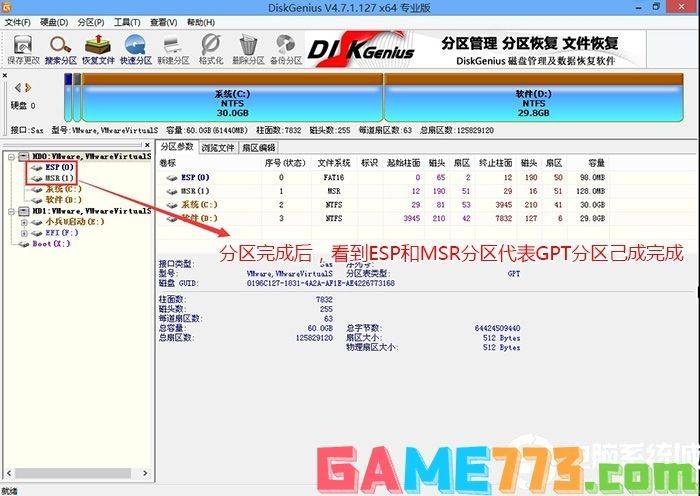
4 upon completion of the division, it can be seen that the esp and msr divisions are completed on behalf of the gpt division, as shown in the figure below
Iv. The win10 system is installed in the jianxian v730 notebook
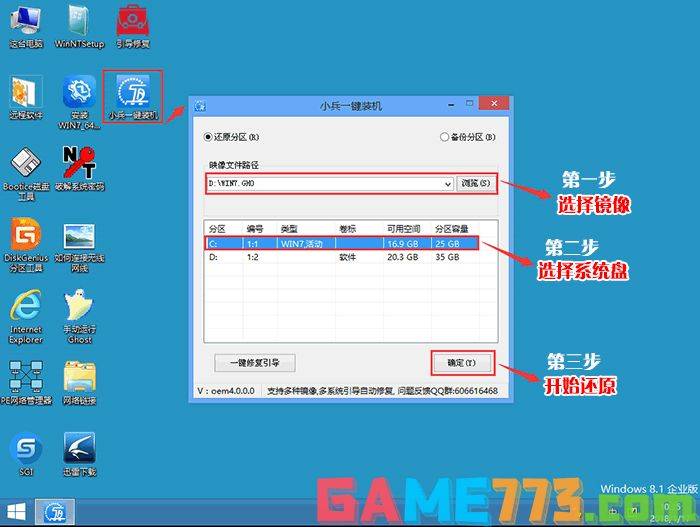
1. After entering the pe, the "soldier one" tool to run the desktop, then click on the browsing, and find on the disk the so- or gho files of the win10 ghost version that we downloaded, using the cdisk as the system disk, and install the win10 system on the cdisk, click to make sure, as shown in the figure:
2. When the click starts and the gho installation is released, the computer will automatically restart the computer, bearing in mind that some disks can be installed without modification of the gpt guide。
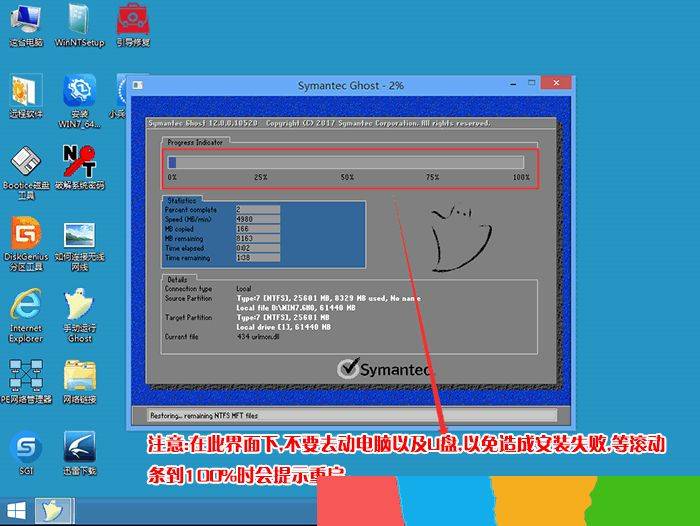
3. After restarting the drive, the system will automatically complete the subsequent program installation and the system will be fully installed until the desktop is seen。