In some cases, we may need to share documents with others, but wish to ensure that only a particular person has access to their contents or to change them, so that we can provide the password to the designated person by encrypting the document and otherwise, so that only someone who knows the password can open and view or modify the document. Let's see how to encrypt the document。
I. Windows operating systems microsoft word operating guidelines:
Open document needing encryption, menubar select file
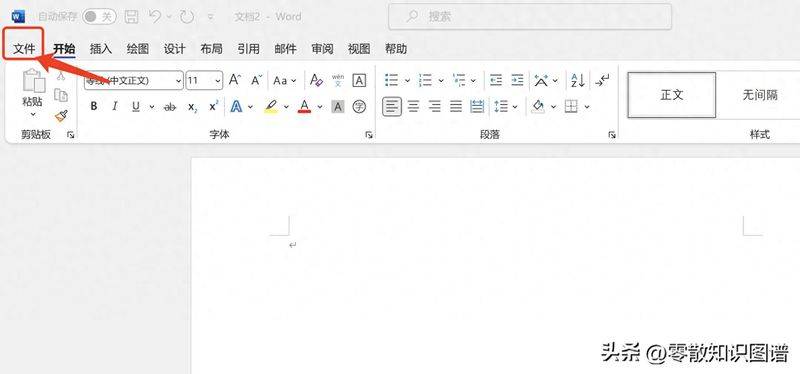
Step 1: open file
Found information in the left menu bar, click on protection document on the right
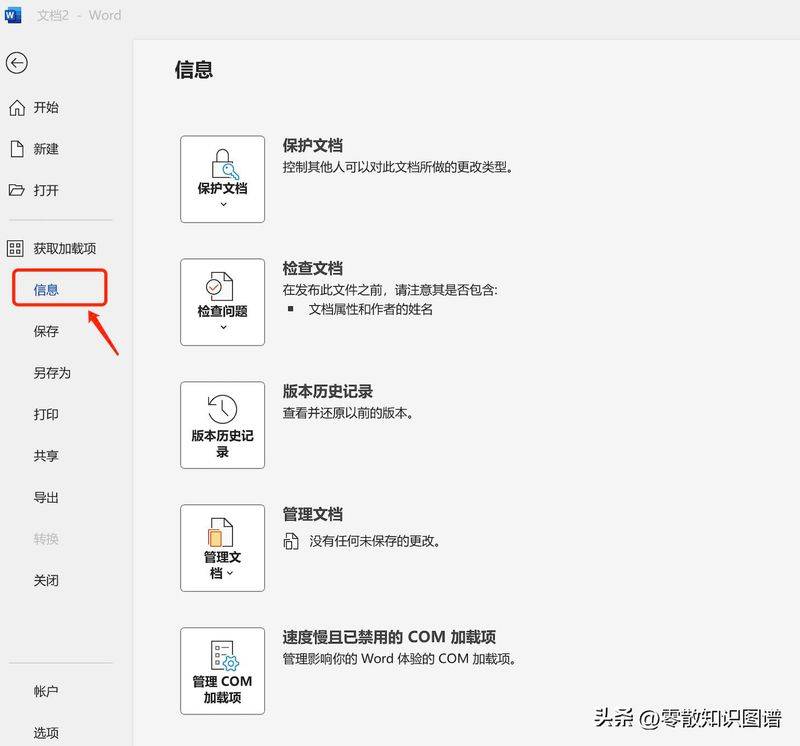
Step two, find protective documents
Click to protect the document, choose " encrypt with password "
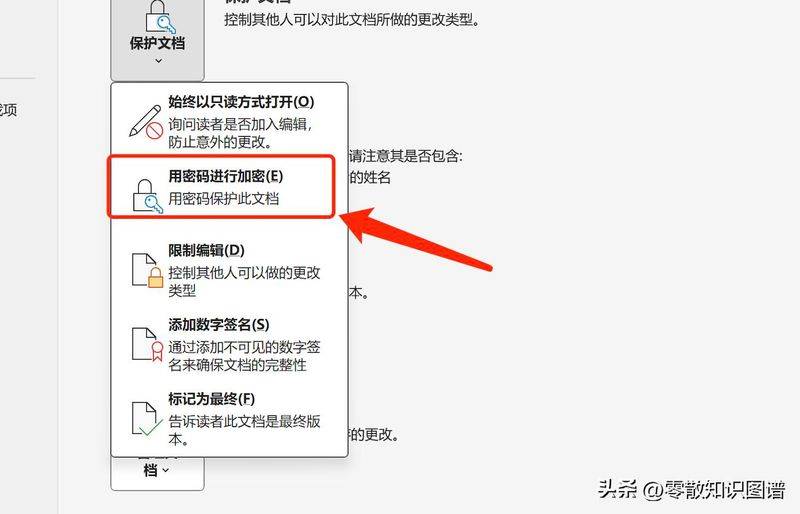
Step three, protect the document
Enter the password, click ok。
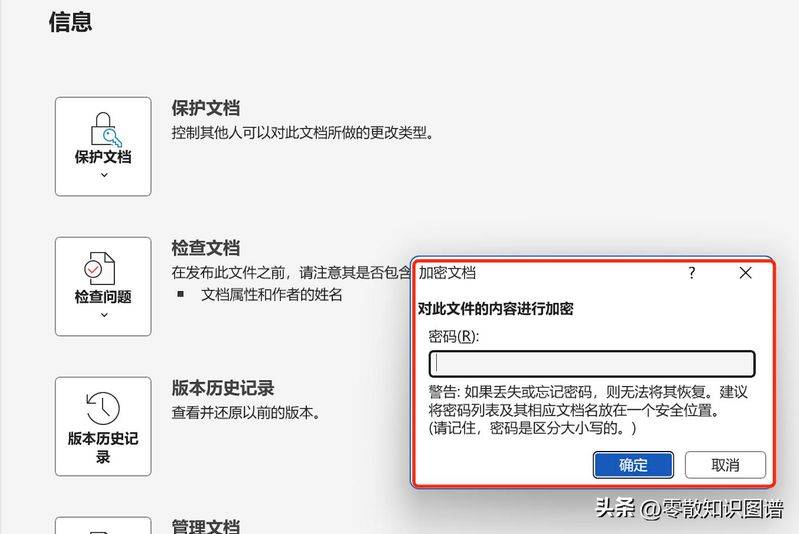
Step four, enter the password
Repeats the password to ensure that both password entries are consistent and click to confirm when the input is completed。
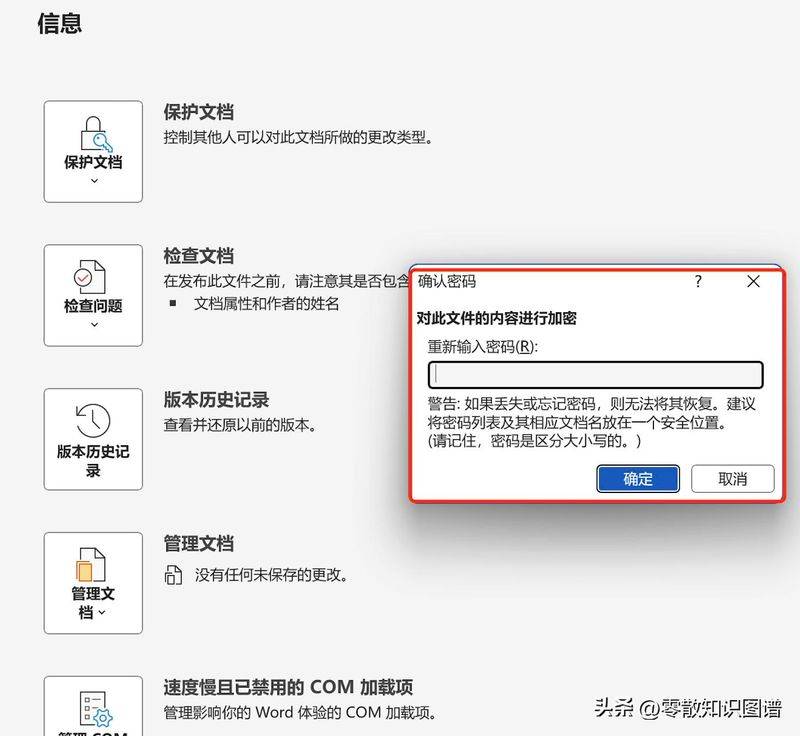
Step five, repeat the password
Validation: the password setting is successful when you close the document and when you open the document again。

Step six, verify
Mac operating system microsoft word operating guidelines:
Open documents that require encryption, select tools - > protect documents
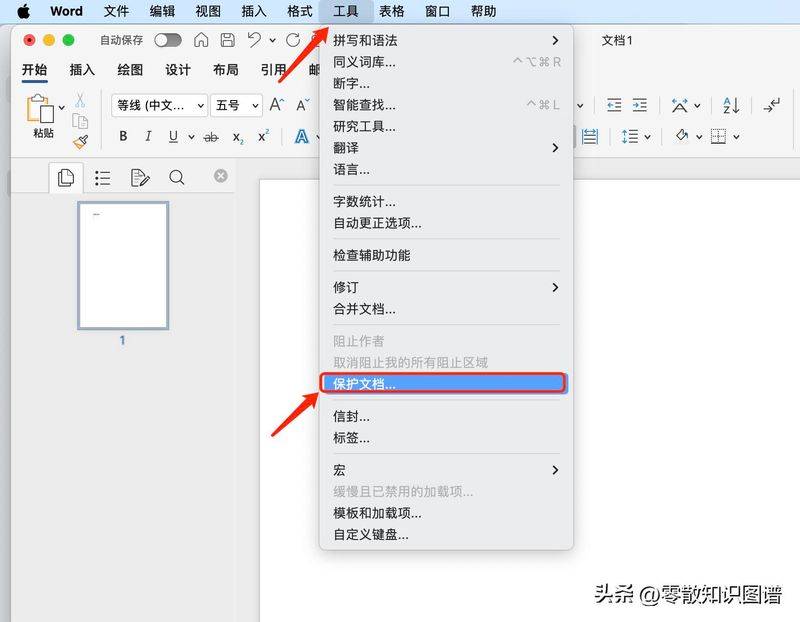
First step: find tool
Sets the password, and this time there are two options, one for the password to be entered when opening and the other for the password to be entered when changing the document, which can be set according to your needs and then click to determine。
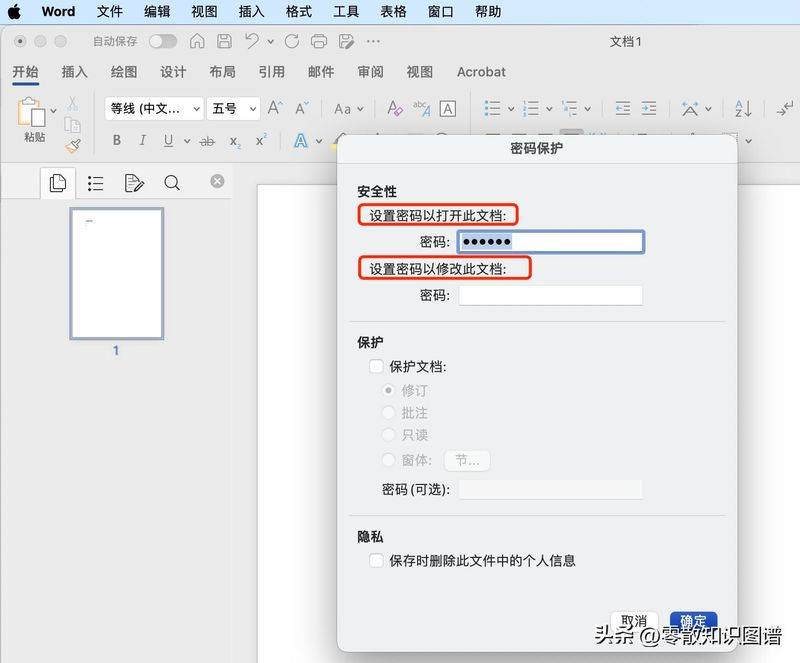
Step two, set the password
Repeats the password to ensure that both password entries are consistent and click to confirm when the input is completed。
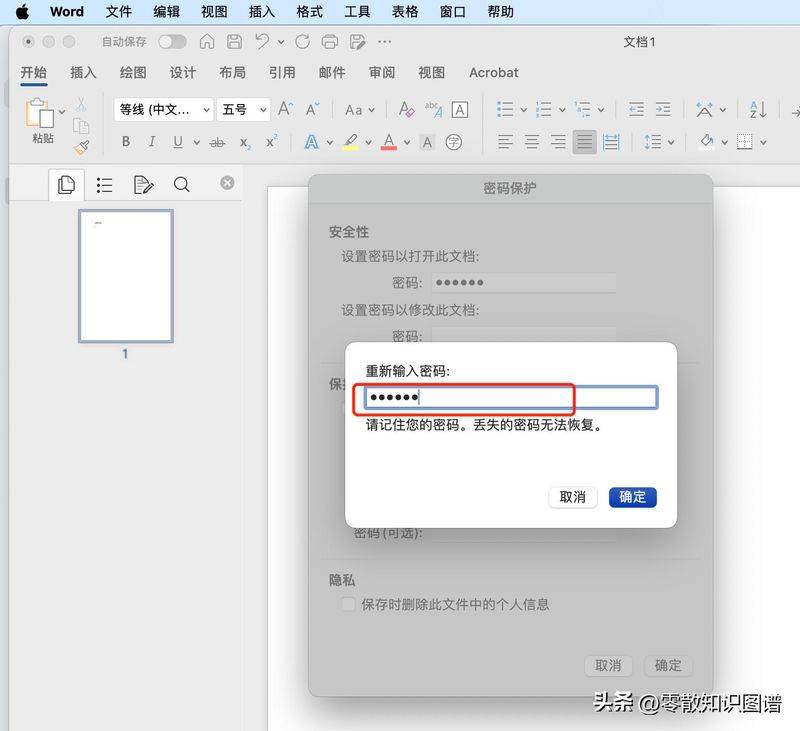
Step three, repeat the password
Validation: the password setting is successful when you close the document and when you open the document again。
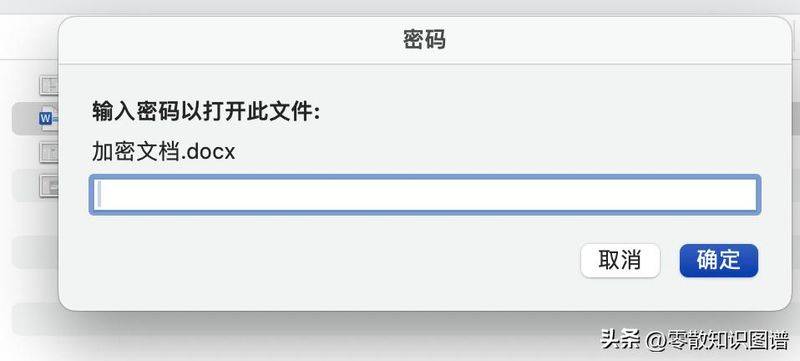
Step four, verify
Iii. Mac operating system wps word operating guidelines:
Open document needing encryption, menubar select file - > file encryption
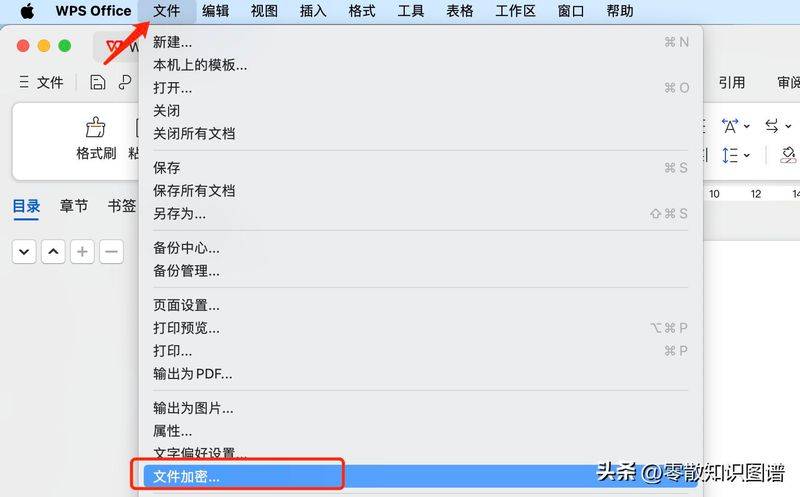
First step: find file encryption
Sets the password, and this time there are two options, one for the password to be entered when opening and the other for the password to be entered when editing the document, which can be set according to your own needs and then click to determine。
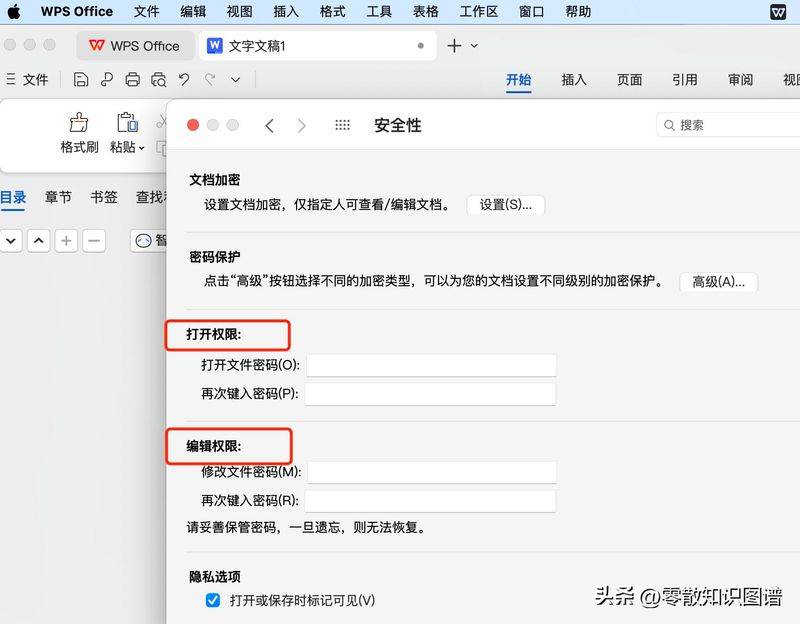
Step two, enter the password
Validation: the password setting is successful when you close the document and when you open the document again。

Step three, verify