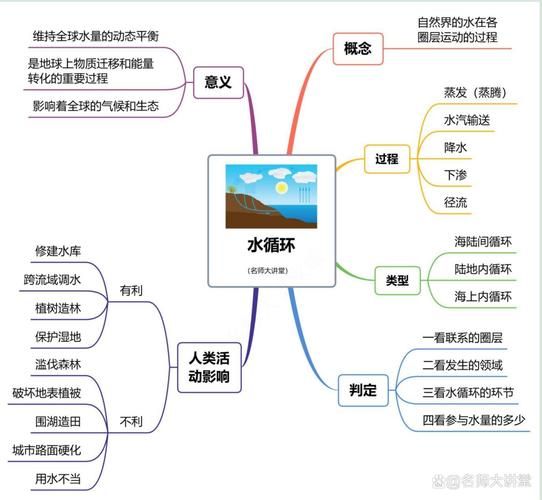


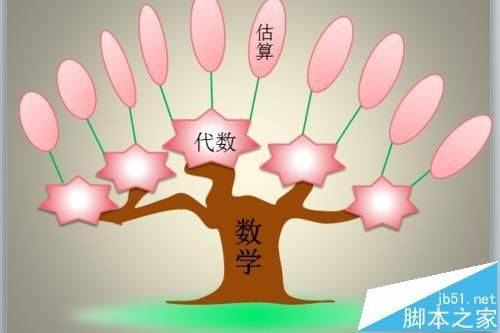
When we learn knowledge, we often summarize it, either by drawing a summary form, or by drawing a mind map, by spreading a brainstorm, or by drawing an image of a knowledge tree structure, or a fish bone map. When we need to show someone about the structure of some knowledge, sometimes we use a living knowledge tree to analyze its structure. How do we draw a knowledge tree inside a ppt?
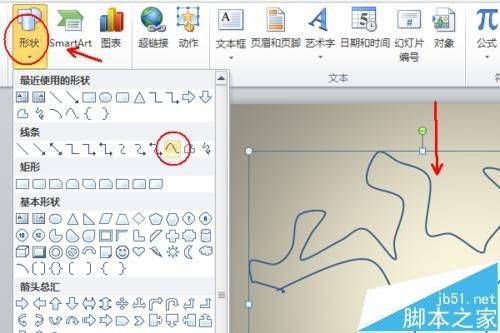
1. Open the ppt, empty the layout, set the background picture, click on insert to select the curve shape, use the curve to draw the trunk and the body of the knowledge tree, as shown in the picture, while visualizing the real tree, which can be painted taller, and finally condensed properly
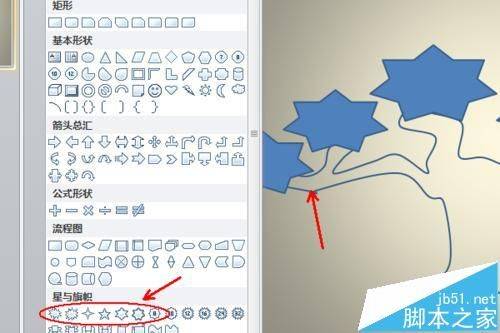
2 or click to insert, select a seven-point star, or choose other shapes of stars or ellipses, and draw a seven-point star on a tree trunk, according to your preference, with a few large categories
3. Select the tree, switch to the drawing tool, click on the shape contour, choose brown, also have shape fill and select brown, as shown in the figure

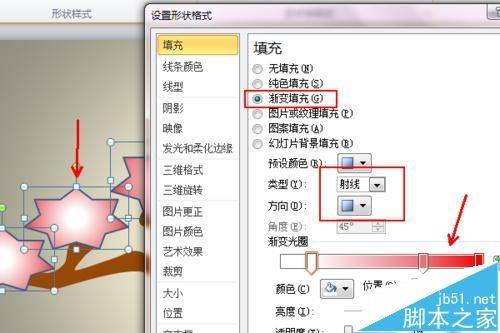
4 and then press ctrl to select all the star types one by one, then click shape fill, select gradients - other gradients, click gradient fills, type of ray, direction of central radiation, center colour position white, center colour position, red gradients, click to determine, click shape contour, set a rough position of 1. 5 pounds, as graph
5. Continue to decomposition, click to insert, select a straight line, continue drawing on a seven-point star, and can be drawn in an angle direction, as required, in quantities that can be added, if needed, and a thicker line set to 2 pounds

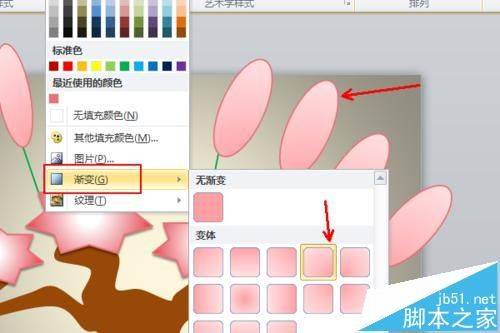
6. Continue to click for insertion, select an ellipse, draw an ellipse in turn at the end of each line, the more sorted, the more ellipse the ellipse need to control the width of the ellipse, or use gradient fill, although this time there is a bottom-up fill, the pink system
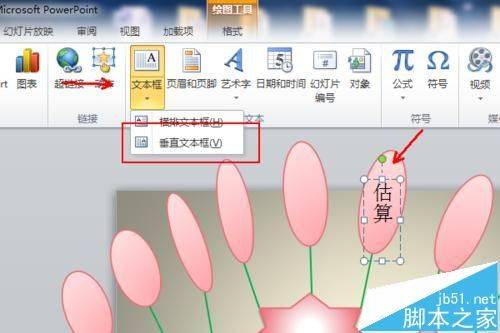
7 and then click to insert, text box, choose to draw a vertical text box, draw a text box in an ellipse, enter text, set text format
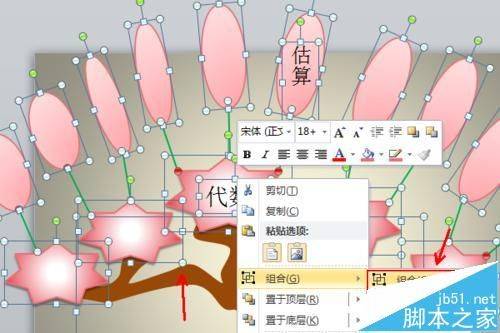
8. Select all graphics by ctrl+a, press ctrl+g, or choose a combination of right-clicks to re-integrate the graphics with appropriate width and length
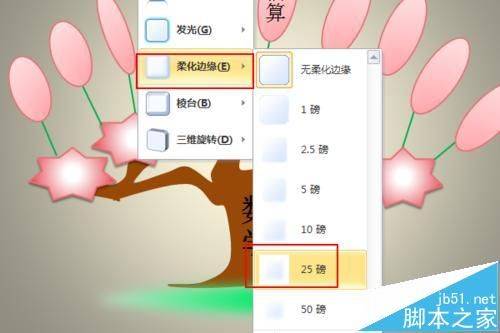
9. Finally, you can add some grassland, insert an ellipse under the tree, fill the colour with central radiation, use grass green, then click the shape effect, select the soft edge, 25 pounds, as shown in the figure
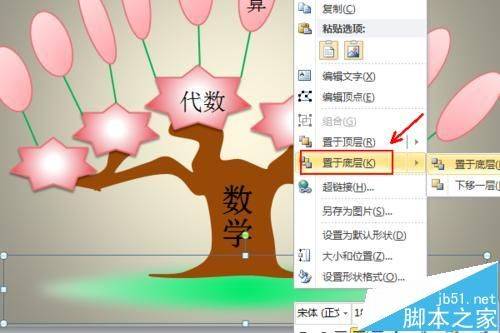
10. The insertion of the “grass floor” close to the roots of the tree will block the impact of the tree, right-hand "grass", choose "place it at the bottom", put it behind the roots, and finally adjust the range of the grasslands as appropriate, so that our knowledge tree is largely complete, and of course there are some words to enter