

Time management is essential in the production and demonstration of ppts. The display of a timer allows speakers to better control the rhythm of the speech and to ensure that the content is completed within the specified time frame. The following are some of the methods used to show timing in ppt, which apply to microsoft powerpoint and other mainstream ppt software。
** i. Enable slide timers**
1. **open timer function**:
In powerpoint, click the slide show tab, and then select the rehearsal count. At this point, the ppt enters full-screen screening mode and starts automatic timing. You can switch slides at normal speaking speed by clicking on the mouse or pressing spaces, and the software will record the time of each slide。
2. ** timed data are kept**:
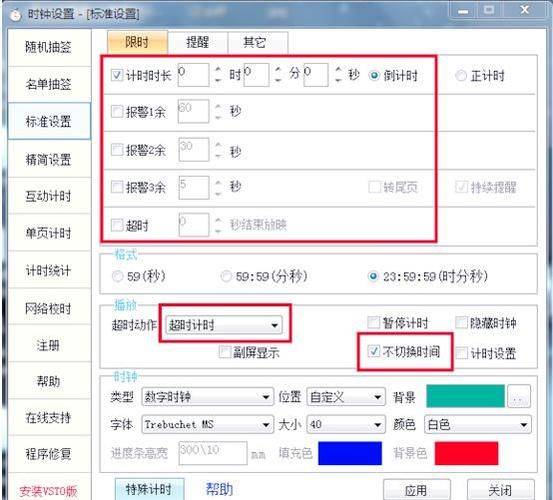
After rehearsing, the system asks if time is to be kept. Click " yes " to link the time data to the slide, and you can see the rest of the current slide at the lower left corner at the next show。
** ii. Timers using the status bar**
1. **show status bar**:
Ensures that the status bar at the bottom of the window is visible in powerpoint editing mode. If the status bar is hidden, it can be enabled by clicking on the options button at the top right corner of the window (usually shown as three dots or gear icons), selecting the show status bar in the popup menu。
2. ** for totals**:
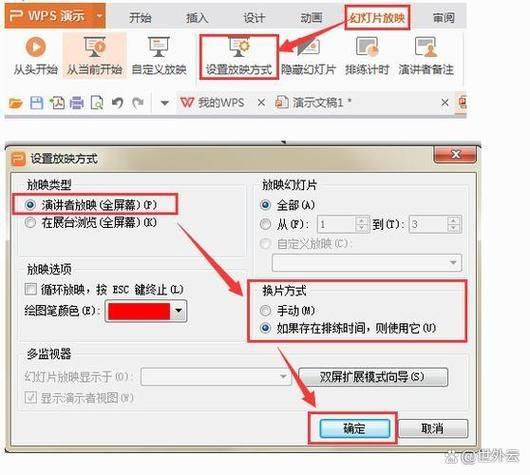
In the status bar, you can see the total show time for the current slide and the remaining time for the current slide (if rehearsal time has been set earlier)。
**iii. Add an additional timer tool**
1. ** insert clock shape**:
If a more intuitive timing is required, a clock shape can be inserted in the ppt. This usually involves downloading a vector map of the shape of a clock from the web and inserting it as a picture into the ppt. Real-time updates of the clock can be achieved by animation effects or vba scripts。
2. ** use of third-party plugins**
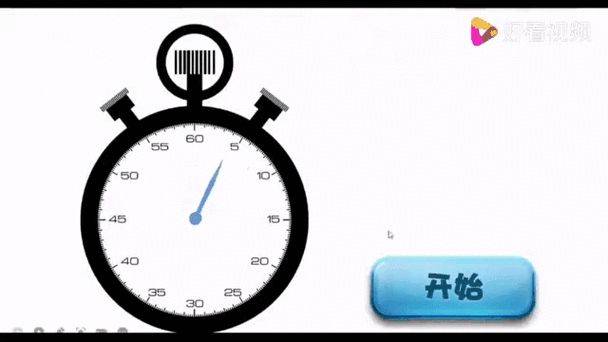
A number of third-party plugins, such as the “ppt timer”, provide more specialized timing functions. These plugins usually support such features as custom timing formats, sound alarms, etc., which can be installed either through the plugin market or through downloads from official websites。
In the above way, you can easily display timing information in the ppt, so you can better control the speech rhythm and enhance presentation effects。