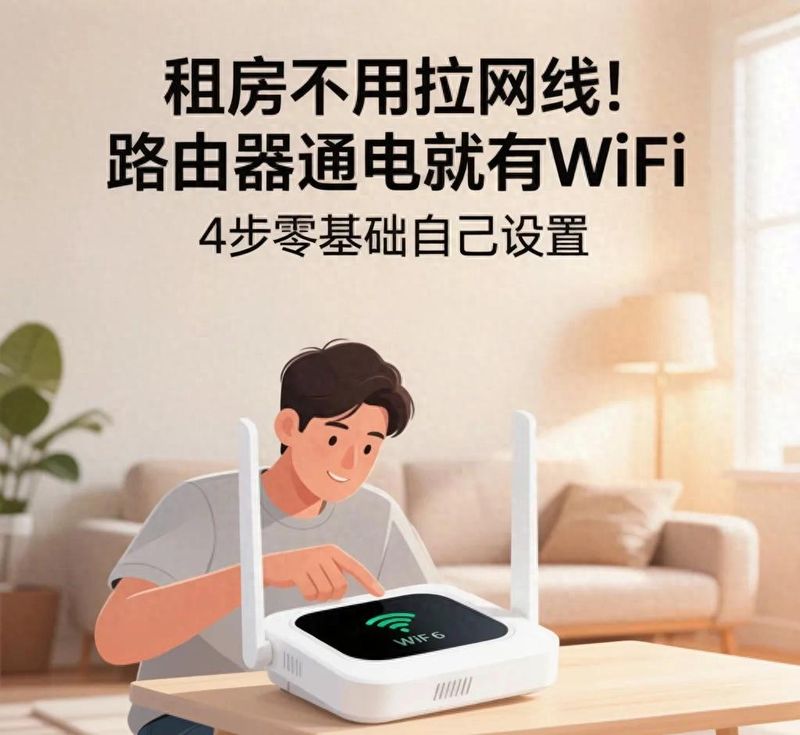


With the rapid development of the internet, wireless routers have become essential to every household. Users who are not in deep contact with routers such as housemaids and whites are “no idea” about how to set a router. In order to give users a good access to the routers, today you will be taught from the extreme route 4 to set the routers from the beginning to the end, with all wireless routers having the same rationale for initialisation。
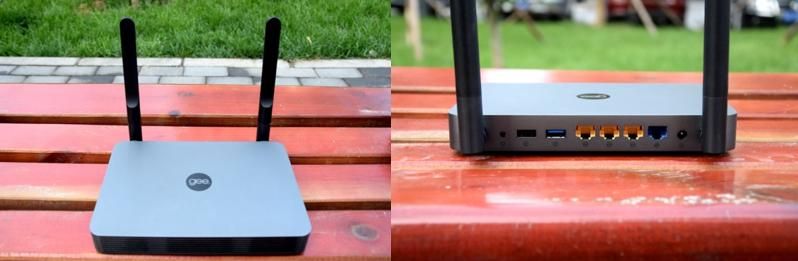
Step one: the connection of the cat to the wireless router
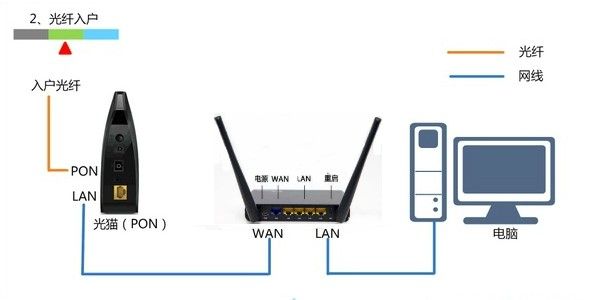
First, by connecting the light cat's lan port and the wireless router's wan interface through the web line, if it is not known whether the wan gate is marked or not, please find the most colour-specific and finally connect to the power source. Any lan interface between the computer and the wireless router is connected with a wire, which is then available。
Step 2: query management ip address
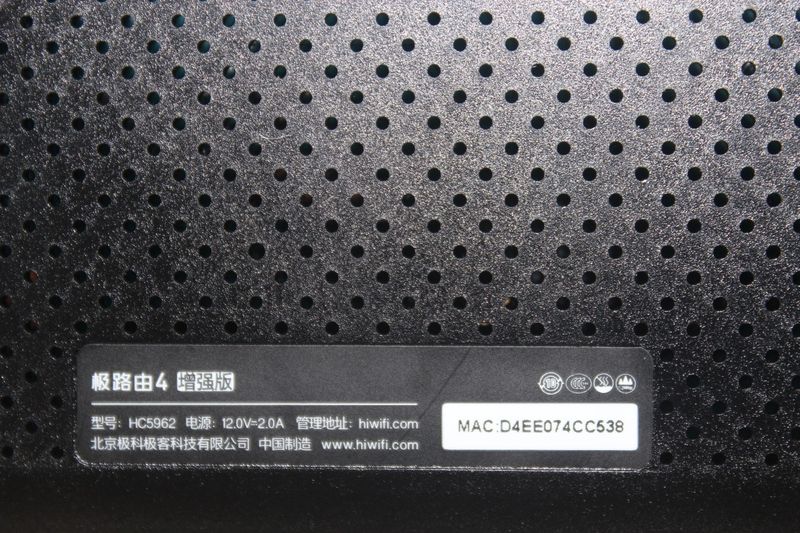
The fastest way to look at the router's landing address is to flip the router over and look at the back。
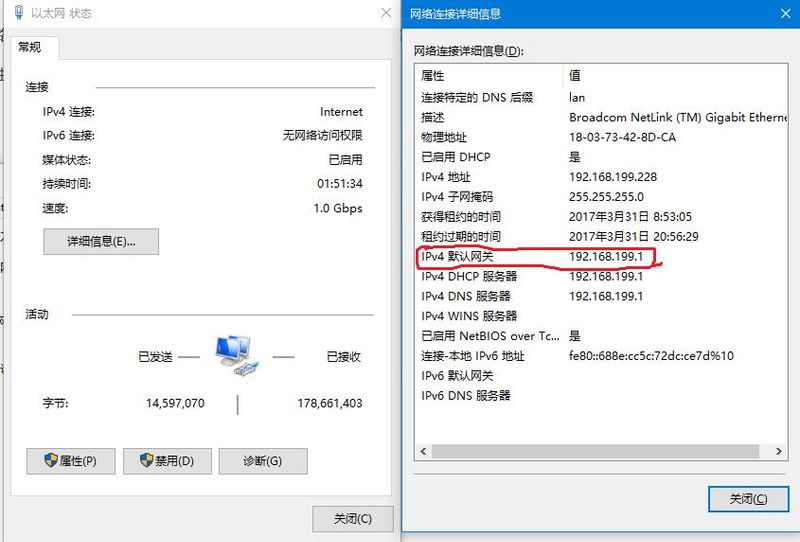
If you do not see it here, you can click on the network and sharing centre at the bottom right corner of the desktop, click on the local connection in the network and sharing centre, click on the details in the connection, and then see the router's login address。
Set method i: use laptop or desktop settings
The polar router set up is fairly personal, so if we turn on the computer, the first time we use it will automatically eject the login interface, and if there is no automatic hint, enter the managed ip address hiwifi. Com or 192168. 199. 1 in the browser, as shown in the figure below:

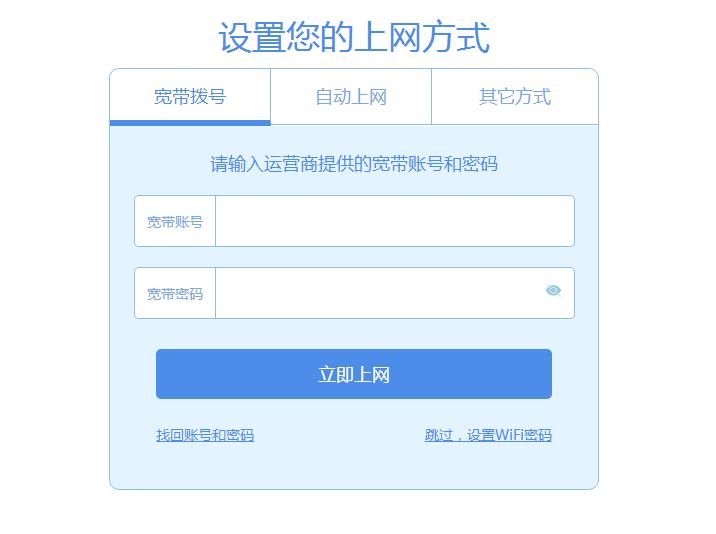
The polar route is supported by 4 for static ip/dvip directly to secondary route, pppoe linked optical cat dial internet, and wifi wireless networking, which can be arranged according to the user's own network environment。
Ultra-routing supports both approaches, i. E. Managing ip and domain name management, both of which are possible
When settings are completed, you will enter the sid interface that sets up wifi, where you will set the wireless password and manage the password. Wireless passwords and management passwords can be set to the same level for convenience, and you can also set them separately。
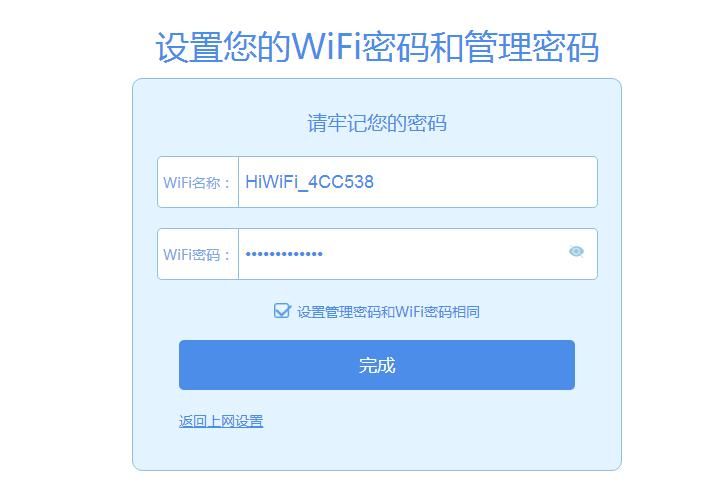
If you do not remember the password, press the “reset” key on the back of the router for 15 seconds and reconfigure the password。
Setup method ii: through mobile phone or mobile terminal settings
1. Wlan settings that turn on the cell phone, and in the search results list, the ultra-routed wifi signal is found, and then clicks on the connection (wiifi is unencrypted at this time and can be connected directly)。
4. Open the browser software on your mobile phone and enter in the browser address bar: hiwifi. Com or 192,168. 199. 1 to enter the polar route settings page。
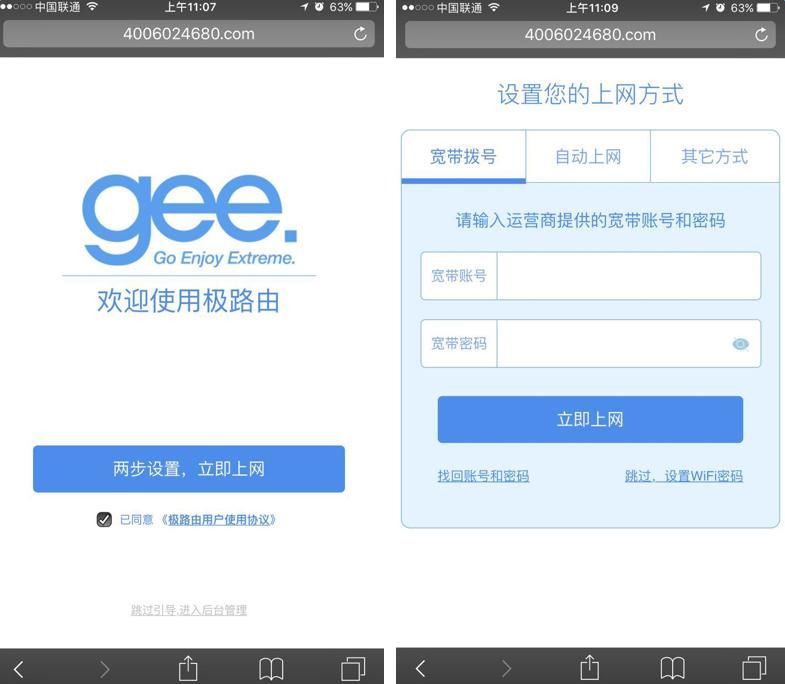
5. Enter your broadband account number and password and then set the "wifi name" and "wifi password"。
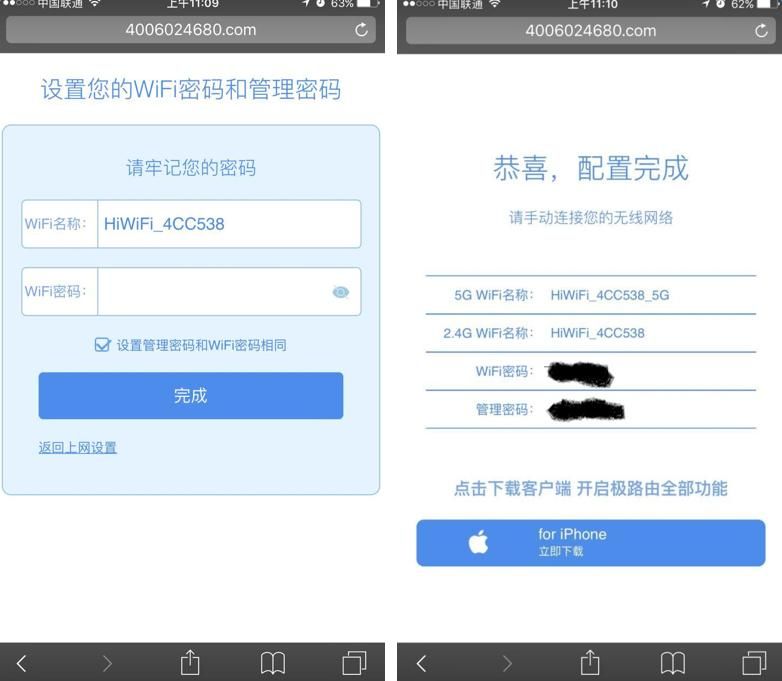
It is suggested to tick "setting management passwords and wifi passwords " , which will eventually generate a polar route configuration to complete the interface。