Connecting network printers to windows xp is a relatively simple process, but there may be some confusion at the first attempt. Details of how to connect network printers to the xp system are provided in a step-by-step manner below。
Step 1: open printer and fax
First, click the " start " menu at the bottom left corner of the computer and select " printer and fax " . This is the main entry point for managing printer-related settings in the xp system。
Step 2: add printer
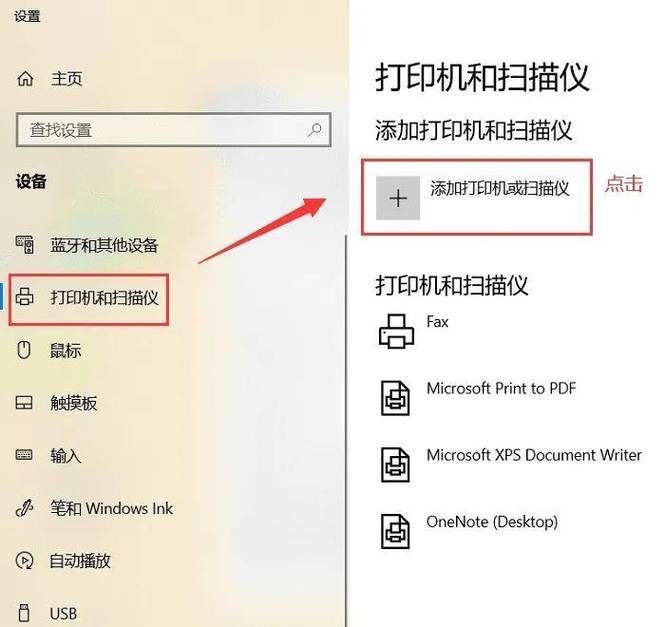
In the printer and fax window, click the add printer button on the left. This will start the wizard for adding printers。
Step 3: select a network printer
On the first page of the wizard, select " local printer connected to this computer " , but note that in the next page, do not tick " autodetect and install and use printer " . Instead, click on next, select create a new port and select standard tcp/ip port in the port type。
Step 4: enter printer ip address

Next, the wizard will ask you to enter the printer's ip address or hostname. Make sure you have the correct ip address from the network administrator or printer file. Enter the next step for a connection test。
# # step 5: install printer driver
If the system detects the correct printer, it may automatically install the corresponding driver. If not, you need to manually select or install the driver. Usually, you can download the latest driver from the printer manufacturer's official website。
Step six: name printer and test
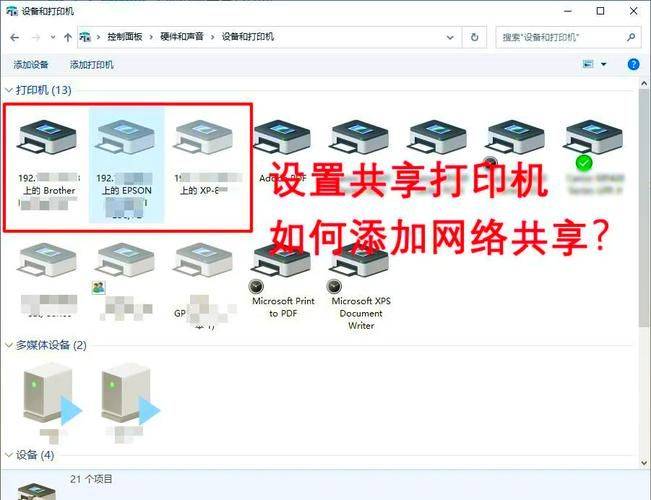
After the driver is installed, you need to name the printer. This helps to quickly identify when printing. The wizard then asks if you want to print the test page to confirm that the printer is installed correctly. It is recommended that this step be implemented to ensure that all settings are correct。
Step 7: complete settings
If the test page is printed successfully, it indicates that your network printer has been successfully connected to the xp system. Click the finish button to exit the wizard and your printer will be available now。